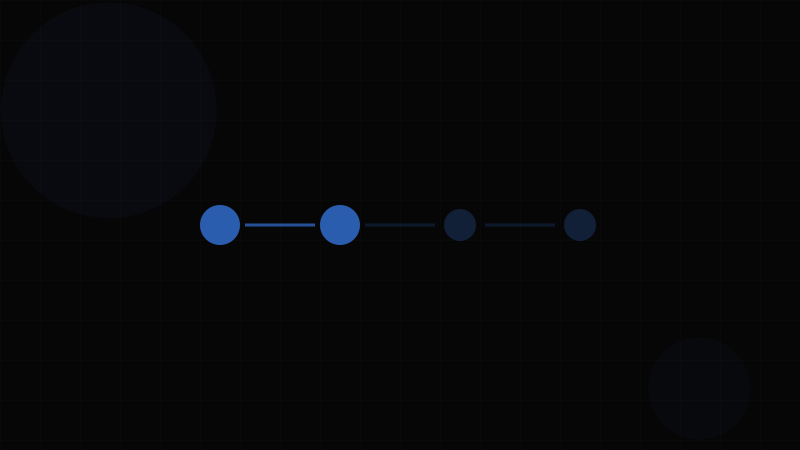
Overview
The Stepper (also known as a wizard, step indicator, or progress steps) is a navigation component that guides users through a multi-step process by displaying each step's status and allowing controlled progression. Steppers decompose complex tasks — like checkout flows, onboarding wizards, form sequences, and configuration processes — into manageable, sequential chunks.
The stepper serves two critical UX functions: it shows users where they are in a process and how much is left, reducing cognitive load and abandonment. Research consistently shows that multi-step forms with clear progress indication have higher completion rates than single long forms or multi-step flows without progress feedback.
When to use a Stepper:
- For multi-step forms (registration, checkout, application)
- For onboarding flows where users must complete sequential setup tasks
- For configuration wizards with dependencies between steps
- For multi-stage processes with review/confirmation stages
- When the total number of steps is known and reasonably small (2–7 steps)
When NOT to use a Stepper:
- For processes with more than ~7 steps — consider grouping into sub-steps or using a different pattern
- For non-linear processes where users can complete tasks in any order — use a checklist or Tabs instead
- For progress on a continuous scale — use a Progress Bar instead
- For single-action tasks that don't need decomposition
- For content navigation — use Tabs or Pagination
The stepper is distinct from a Progress Bar in that it represents discrete, named stages rather than continuous percentage completion.
Variants
Orientation Variants
| Variant | Description | Best For |
|---|---|---|
| Horizontal | Steps displayed in a horizontal row, typically at the top of the form. | Desktop flows with 3–5 steps, wizard dialogs |
| Vertical | Steps displayed in a vertical list, typically on the left side. | Complex flows with descriptions, mobile layouts, sidebar placement |
Step State Variants
| State | Visual Treatment | Description |
|---|---|---|
| Completed | Filled circle with checkmark, solid connector line | Step has been finished and validated |
| Active / Current | Highlighted circle (brand color), bold label | The step the user is currently on |
| Upcoming | Muted/outlined circle, dimmed label | Steps not yet reached |
| Error | Red circle with error icon | The step has validation errors that need correction |
| Disabled | Greyed out, non-interactive | Step cannot be accessed (e.g., dependency not met) |
| Optional | "Optional" sub-label, skip action available | Step can be skipped without blocking progress |
Navigation Variants
| Variant | Description | Use Case |
|---|---|---|
| Linear | Users must complete steps sequentially. Previous steps are revisitable. | Checkout, application forms |
| Non-linear | Users can jump to any step at any time (if permitted). | Settings wizards, profile completion |
| Linear with validation | Forward navigation blocked until current step validates. | Payment flows, legal agreements |
Visual Variants
| Variant | Description | Example |
|---|---|---|
| Numbered | Steps show their sequential number (1, 2, 3...) | Most common — clear positional reference |
| Icon | Steps show a descriptive icon (cart, payment, shipping) | E-commerce, when icons are unambiguous |
| Dot | Minimal dots without numbers or icons | Mobile compact steppers |
| Progress bar hybrid | Steps connected by a filling progress bar | Material Design Mobile Stepper |
| Text-only | Labels with connecting lines, no circles | Minimal, editorial flows |
Properties
Stepper Properties
| Property | Type | Default | Description |
|---|---|---|---|
activeStep | number | 0 | Zero-based index of the current active step |
steps | StepConfig[] | — | Array of step configuration objects |
orientation | 'horizontal' | 'vertical' | 'horizontal' | Layout direction |
variant | 'numbered' | 'icon' | 'dot' | 'numbered' | Visual style of step indicators |
linear | boolean | true | Whether steps must be completed in order |
nonLinear | boolean | false | Whether users can click any step to navigate to it |
alternativeLabel | boolean | false | Places labels below step icons (horizontal only) |
connector | ReactNode | Default line | Custom connector element between steps |
onStepChange | (step: number) => void | — | Callback when active step changes |
onComplete | () => void | — | Callback when the last step is completed |
className | string | — | Custom CSS class |
StepConfig Object
| Property | Type | Default | Description |
|---|---|---|---|
label | string | — | Step title displayed in the stepper |
description | string | — | Optional secondary text below the label |
icon | ReactNode | Step number | Custom icon for the step indicator |
optional | boolean | false | Marks the step as skippable |
error | boolean | false | Displays error state on the step |
disabled | boolean | false | Prevents interaction with the step |
completed | boolean | Auto-calculated | Override completion state |
content | ReactNode | — | Step panel content (for integrated stepper+content) |
validate | () => boolean | Promise<boolean> | — | Validation function called before advancing |
Token Mappings
Design Token Mappings
| Token | Role | Typical Value |
|---|---|---|
color.brand.primary | Active step indicator background | Brand primary |
color.brand.primary-text | Active step number/icon color | White on brand |
color.success | Completed step indicator | Green (#10b981) |
color.error | Error step indicator | Red (#ef4444) |
color.text.primary | Active step label | #111827 |
color.text.secondary | Upcoming step label | #6b7280 |
color.text.disabled | Disabled step label | #9ca3af |
color.border.default | Connector line (incomplete) | #d1d5db |
color.border.brand | Connector line (completed) | Brand primary |
color.bg.surface | Step indicator background (upcoming) | #f3f4f6 |
size.step-indicator | Step circle diameter | 32–40px |
size.connector-height | Connector line thickness | 2px |
space.2 – space.4 | Gap between indicator and label | 8–16px |
space.8 – space.12 | Gap between steps (horizontal) | 32–48px |
font.size.sm | Step description text | 0.875rem |
font.size.base | Step label text | 1rem |
font.weight.medium | Active step label weight | 500 |
transition.duration.normal | Step transition animation | 200ms |
States
Stepper States
The stepper has a rich state model because it manages the lifecycle of an entire multi-step process:
| State | Description | Visual Indicators |
|---|---|---|
| Initial | No steps completed, first step is active | Step 1 highlighted, all others upcoming |
| In progress | Some steps completed, one active | Completed steps show checkmarks, active step highlighted, rest upcoming |
| Error | Current step has validation errors | Active step shows error icon/color, "Fix errors" messaging |
| All completed | All steps finished, ready for final submission | All steps show checkmarks, summary/review state |
| Step validating | Async validation running before advancing | Loading spinner on active step, "Next" button disabled |
Step Transition Flow
[User clicks "Next"]
  → Validate current step (sync or async)
  → If valid:
    → Mark current step as completed
    → Advance activeStep index
    → Focus the new step's first input (or the step itself for screen reader announcement)
  → If invalid:
    → Mark current step as error
    → Focus the first invalid field
    → Announce error to screen readers via aria-live
Navigation Behavior
| Action | Linear Mode | Non-linear Mode |
|---|---|---|
| Click completed step | Navigates back | Navigates to step |
| Click upcoming step | Blocked (no action) | Navigates to step |
| Click disabled step | Blocked | Blocked |
| Click "Next" | Validates then advances | Validates then advances |
| Click "Back" | Returns to previous step | Returns to previous step |
| Keyboard Enter on step | Same as click | Same as click |
Mobile Behavior
On narrow viewports, horizontal steppers should adapt:
- Compact: Show only the active step number/name with arrows for navigation
- Dot indicator: Replace full labels with dots showing position
- Text stepper: "Step 2 of 5: Payment" format
- Bottom navigation: Move Next/Back buttons to a sticky bottom bar
Accessibility
Accessibility Requirements
Steppers involve complex navigation and state management that require careful ARIA implementation for screen reader users.
WCAG Success Criteria:
- 1.3.1 Info and Relationships (Level A): The stepper must communicate the step sequence, each step's label, and its state (completed, active, upcoming, error) programmatically. Use an
<ol>(ordered list) as the stepper container — the ordered list semantics communicate that the steps are sequential. Each step is an<li>. - 4.1.2 Name, Role, Value (Level A): Each step indicator should use
aria-current="step"on the active step to identify the user's current position. Completed steps should includearia-labelthat communicates completion (e.g., "Step 1: Account details, completed"). Error steps should include error state in their label. - 2.4.3 Focus Order (Level A): In linear steppers, only completed and active steps should be focusable. Upcoming steps should not receive focus (they're not interactive). In non-linear steppers, all non-disabled steps are focusable.
- 3.3.1 Error Identification (Level A): When a step has validation errors that prevent advancement, the specific errors must be identified in text. The step indicator should visually and programmatically indicate the error state.
- 3.3.3 Error Suggestion (Level AA): When the stepper prevents advancement due to validation errors, provide specific suggestions for how to resolve them.
- 2.4.6 Headings and Labels (Level AA): Step labels should be descriptive and unique. "Step 1", "Step 2" alone is insufficient — use "Account Information", "Payment Details", etc.
- 4.1.3 Status Messages (Level AA): When a step transition occurs, announce the new step to screen readers using
aria-live="polite". When validation errors prevent advancement, announce the error usingaria-live="assertive".
ARIA Pattern:
<nav aria-label="Checkout progress">
  <ol class="stepper" role="list">
    <li class="step step--completed" aria-label="Step 1: Account details, completed">
      <span class="step__indicator" aria-hidden="true">✓</span>
      <span class="step__label">Account Details</span>
    </li>
    <li class="step step--active" aria-current="step" aria-label="Step 2: Payment, current step">
      <span class="step__indicator" aria-hidden="true">2</span>
      <span class="step__label">Payment</span>
    </li>
    <li class="step step--upcoming" aria-label="Step 3: Review, upcoming">
      <span class="step__indicator" aria-hidden="true">3</span>
      <span class="step__label">Review</span>
    </li>
  </ol>
</nav>
<div role="status" aria-live="polite" class="sr-only">
  Step 2 of 3: Payment
</div>
Keyboard Interaction:
In non-linear steppers where steps are clickable:
- Tab: Moves focus between interactive steps
- Enter/Space: Activates the focused step
- Arrow keys (optional): Moves focus between steps without activating
Verify that step labels and error messages meet contrast requirements with the Contrast Checker.
Usage Guidelines
Usage Guidelines
Do:
- Keep steps between 2 and 7 — more than 7 indicates the process should be restructured or broken into sub-flows
- Use descriptive, action-oriented step labels ("Enter Details", "Choose Plan", "Review & Confirm") rather than generic ones ("Step 1", "Step 2")
- Validate each step before allowing advancement — don't let users reach the final step only to discover errors in step 2
- Allow users to return to completed steps to review and edit their input
- Save progress (in state, session storage, or server-side) so users can resume if they leave
- Show a completion/success state after the final step, not an abrupt redirect
- On mobile, adapt to a compact stepper format showing only the current step with navigation controls
- Provide a visible "Back" button — don't rely solely on clicking step indicators for backward navigation
Don't:
- Use a stepper for single-step processes — that's just a form
- Force linear navigation when steps are independent — let users navigate freely if steps don't depend on each other
- Reset user input when navigating back — preserve all entered data
- Use a stepper for content exploration (use Tabs) or pagination (use Pagination)
- Place critical form fields in optional steps — required data belongs in required steps
- Create steps with wildly unequal complexity — one step with 2 fields and another with 20 fields creates a frustrating user experience
Step Content Guidelines:
| Step Aspect | Recommendation |
|---|---|
| Field count | 3–7 fields per step. Fewer than 3 doesn't warrant a separate step. |
| Validation | Validate on blur and on "Next" click. Show inline errors. |
| Progress persistence | Auto-save or warn before leaving. Use beforeunload for protection. |
| Final step | Always include a review/summary step for important processes. |
| Completion | Show a clear success state with next actions (e.g., "Go to Dashboard"). |
When to Use Alternatives:
| Scenario | Component | Why |
|---|---|---|
| Tasks completable in any order | Checklist / Tabs | Steps imply sequence |
| Continuous progress (e.g., upload) | Progress Bar | Stepper is for discrete stages |
| Switching between content views | Tabs | Stepper implies progression |
| Browsing through pages of data | Pagination | Stepper implies task completion |
Code Snippets
<!-- Horizontal stepper -->
<nav aria-label="Registration progress">
  <ol class="stepper" role="list">
    <li class="step step--completed">
      <span class="step__indicator" aria-hidden="true">
        <svg width="16" height="16" viewBox="0 0 16 16" fill="currentColor"><path d="M13.485 3.929a1 1 0 010 1.414l-6.364 6.364a1 1 0 01-1.414 0L3.05 9.05a1 1 0 111.414-1.414l2.121 2.121 5.657-5.657a1 1 0 011.414 0z"/></svg>
      </span>
      <span class="step__label">Account</span>
      <span class="sr-only">, completed</span>
    </li>
    <li class="step step--active" aria-current="step">
      <span class="step__indicator" aria-hidden="true">2</span>
      <span class="step__label">Personal Info</span>
      <span class="sr-only">, current step</span>
    </li>
    <li class="step step--upcoming">
      <span class="step__indicator" aria-hidden="true">3</span>
      <span class="step__label">Preferences</span>
      <span class="sr-only">, upcoming</span>
    </li>
    <li class="step step--upcoming">
      <span class="step__indicator" aria-hidden="true">4</span>
      <span class="step__label">Review</span>
      <span class="sr-only">, upcoming</span>
    </li>
  </ol>
</nav>

<!-- Live region for step announcements -->
<div role="status" aria-live="polite" class="sr-only" id="stepper-status">
  Step 2 of 4: Personal Info
</div>

<!-- Step content panel -->
<div class="step-content" role="region" aria-label="Personal Info">
  <form>
    <div class="form-field">
      <label for="firstName">First Name</label>
      <input type="text" id="firstName" required />
    </div>
    <div class="form-field">
      <label for="lastName">Last Name</label>
      <input type="text" id="lastName" required />
    </div>
  </form>
  <div class="step-actions">
    <button type="button" class="btn btn--secondary" onclick="goToPrevStep()">Back</button>
    <button type="button" class="btn btn--primary" onclick="goToNextStep()">Continue</button>
  </div>
</div>

<style>
.stepper {
  display: flex;
  list-style: none;
  padding: 0;
  margin: 0 0 32px;
  counter-reset: step;
}
.step {
  flex: 1;
  display: flex;
  flex-direction: column;
  align-items: center;
  position: relative;
  text-align: center;
}
.step:not(:last-child)::after {
  content: '';
  position: absolute;
  top: 16px;
  left: calc(50% + 20px);
  width: calc(100% - 40px);
  height: 2px;
  background: #d1d5db;
}
.step--completed:not(:last-child)::after {
  background: var(--color-brand, #6366f1);
}
.step__indicator {
  width: 32px;
  height: 32px;
  border-radius: 50%;
  display: flex;
  align-items: center;
  justify-content: center;
  font-size: 0.875rem;
  font-weight: 600;
  position: relative;
  z-index: 1;
  background: #f3f4f6;
  color: #6b7280;
}
.step--completed .step__indicator {
  background: var(--color-brand, #6366f1);
  color: #fff;
}
.step--active .step__indicator {
  background: var(--color-brand, #6366f1);
  color: #fff;
  box-shadow: 0 0 0 4px rgba(99, 102, 241, 0.2);
}
.step__label {
  margin-top: 8px;
  font-size: 0.875rem;
  color: #6b7280;
}
.step--active .step__label {
  color: #111827;
  font-weight: 500;
}
.sr-only {
  position: absolute;
  width: 1px;
  height: 1px;
  padding: 0;
  margin: -1px;
  overflow: hidden;
  clip: rect(0, 0, 0, 0);
  border: 0;
}
</style>import React, { useState, useCallback } from 'react';
interface StepConfig {
label: string;
description?: string;
optional?: boolean;
icon?: React.ReactNode;
validate?: () => boolean | Promise<boolean>;
content: React.ReactNode;
}
interface StepperProps {
steps: StepConfig[];
orientation?: 'horizontal' | 'vertical';
linear?: boolean;
onComplete?: () => void;
className?: string;
}
function Stepper({
steps,
orientation = 'horizontal',
linear = true,
onComplete,
className,
}: StepperProps) {
const [activeStep, setActiveStep] = useState(0);
const [completedSteps, setCompletedSteps] = useState<Set<number>>(new Set());
const [errorSteps, setErrorSteps] = useState<Set<number>>(new Set());
const [statusMessage, setStatusMessage] = useState(`Step 1 of ${steps.length}: ${steps[0].label}`);
const goToStep = useCallback((index: number) => {
if (linear && index > activeStep && !completedSteps.has(activeStep)) return;
if (index < 0 || index >= steps.length) return;
setActiveStep(index);
setStatusMessage(`Step ${index + 1} of ${steps.length}: ${steps[index].label}`);
}, [linear, activeStep, completedSteps, steps]);
const handleNext = useCallback(async () => {
const step = steps[activeStep];
if (step.validate) {
const isValid = await step.validate();
if (!isValid) {
setErrorSteps(prev => new Set(prev).add(activeStep));
setStatusMessage(`Error on step ${activeStep + 1}: ${step.label}. Please fix errors before continuing.`);
return;
}
}
setErrorSteps(prev => { const next = new Set(prev); next.delete(activeStep); return next; });
setCompletedSteps(prev => new Set(prev).add(activeStep));
if (activeStep === steps.length - 1) {
onComplete?.();
setStatusMessage('All steps completed.');
} else {
goToStep(activeStep + 1);
}
}, [activeStep, steps, goToStep, onComplete]);
const handleBack = useCallback(() => {
goToStep(activeStep - 1);
}, [activeStep, goToStep]);
const getStepState = (index: number) => {
if (errorSteps.has(index)) return 'error';
if (completedSteps.has(index)) return 'completed';
if (index === activeStep) return 'active';
return 'upcoming';
};
const isHorizontal = orientation === 'horizontal';
return (
<div className={className}>
<nav aria-label="Form progress">
<ol
role="list"
style={{
display: 'flex',
flexDirection: isHorizontal ? 'row' : 'column',
listStyle: 'none',
padding: 0,
margin: '0 0 32px',
gap: isHorizontal ? 0 : 8,
}}
>
{steps.map((step, i) => {
const state = getStepState(i);
const isClickable = !linear || completedSteps.has(i) || i === activeStep;
return (
<li
key={i}
style={{ flex: isHorizontal ? 1 : undefined, textAlign: isHorizontal ? 'center' : 'left' }}
aria-current={state === 'active' ? 'step' : undefined}
>
<button
type="button"
onClick={() => isClickable && goToStep(i)}
disabled={!isClickable}
aria-label={`Step ${i + 1}: ${step.label}, ${state}`}
style={{
display: 'flex',
flexDirection: isHorizontal ? 'column' : 'row',
alignItems: 'center',
gap: 8,
background: 'none',
border: 'none',
cursor: isClickable ? 'pointer' : 'default',
padding: 0,
width: '100%',
opacity: state === 'upcoming' ? 0.5 : 1,
}}
>
<span
style={{
width: 32,
height: 32,
borderRadius: '50%',
display: 'flex',
alignItems: 'center',
justifyContent: 'center',
fontSize: '0.875rem',
fontWeight: 600,
background: state === 'active' || state === 'completed' ? '#6366f1'
: state === 'error' ? '#ef4444' : '#f3f4f6',
color: state === 'active' || state === 'completed' || state === 'error' ? '#fff' : '#6b7280',
flexShrink: 0,
}}
>
{state === 'completed' ? '✓' : state === 'error' ? '!' : i + 1}
</span>
<span style={{
fontSize: '0.875rem',
fontWeight: state === 'active' ? 500 : 400,
color: state === 'active' ? '#111827' : '#6b7280',
}}>
{step.label}
{step.optional && <span style={{ display: 'block', fontSize: '0.75rem' }}>Optional</span>}
</span>
</button>
</li>
);
})}
</ol>
</nav>
{/* Live region for screen reader announcements */}
<div role="status" aria-live="polite" className="sr-only">{statusMessage}</div>
{/* Step content */}
<div role="region" aria-label={steps[activeStep].label}>
{steps[activeStep].content}
</div>
{/* Navigation */}
<div style={{ display: 'flex', justifyContent: 'space-between', marginTop: 24 }}>
<button onClick={handleBack} disabled={activeStep === 0} className="btn btn--secondary">
Back
</button>
<button onClick={handleNext} className="btn btn--primary">
{activeStep === steps.length - 1 ? 'Complete' : 'Continue'}
</button>
</div>
</div>
);
}
// Usage
function CheckoutFlow() {
return (
<Stepper
steps={[
{
label: 'Cart Review',
validate: () => true,
content: <div>Review your items...</div>,
},
{
label: 'Shipping',
validate: () => true,
content: <div>Enter shipping address...</div>,
},
{
label: 'Payment',
validate: () => true,
content: <div>Enter payment details...</div>,
},
{
label: 'Confirmation',
optional: false,
content: <div>Review and confirm your order...</div>,
},
]}
onComplete={() => console.log('Order placed!')}
/>
);
}Design Systems
Design System Implementations
Material Design 3 (MUI) provides <Stepper>, <Step>, <StepLabel>, <StepContent> (vertical only), <StepButton> (non-linear), <StepConnector>, and <StepIcon>. The Stepper accepts activeStep, orientation (horizontal | vertical), alternativeLabel (labels below icons), nonLinear, and connector (custom connector component). MUI also provides <MobileStepper> — a compact stepper with dots, text ("Step 1 of 3"), or a progress bar, plus integrated back/next buttons. This is the most comprehensive stepper implementation in any design system.
Ant Design provides <Steps> with current (active step index), direction (horizontal | vertical), type (default | navigation | inline), size (default | small), status (wait | process | finish | error), onChange (click handler for non-linear), percent (partial completion within a step), and responsive (auto-switches to vertical on small screens). Each Steps.Step accepts title, subTitle, description, icon, status, and disabled. Ant's navigation type renders as a breadcrumb-style stepper suitable for page-level wizards.
Chakra UI does not include a Stepper component in its core library. The community chakra-ui-steps package provides <Steps> and <Step> with activeStep, orientation, colorScheme, and step-level label, description, and icon props. Chakra UI v3 (Ark UI-based) introduces a built-in Stepper primitive.
Radix UI does not provide a stepper component — multi-step flows involve too many application-specific decisions (validation strategy, persistence, navigation rules) to standardize as a headless primitive.
Headless UI does not include a stepper component.
react-aria (Adobe Spectrum) does not provide a dedicated stepper. Spectrum's approach is to use a <TabList> variant with step semantics, combining aria-current with ordered list semantics. This is an unusual but technically sound approach that leverages existing keyboard navigation patterns.
Shadcn/ui does not include a stepper in its core components but the community has contributed stepper recipes that compose <Button>, <Separator>, and state management into a fully accessible stepper pattern.