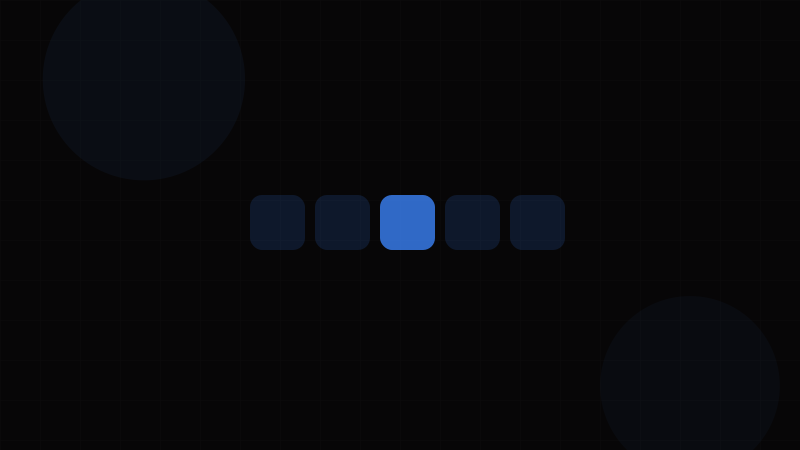
Overview
The Pagination component divides large sets of content — search results, product listings, data tables — across multiple pages and provides controls for navigating between them. It answers a fundamental UX question: how do you present hundreds or thousands of items without overwhelming the user or the browser?
Pagination is one of the oldest interaction patterns on the web, predating modern JavaScript frameworks by decades. Despite the rise of infinite scroll and "Load More" buttons, traditional numbered pagination remains the dominant pattern for search results, data tables, and e-commerce catalogs — contexts where users need positional awareness ("I'm on page 3 of 47") and the ability to jump to specific locations.
When to use Pagination:
- Data tables with hundreds of rows (Table)
- Search results where users scan across pages
- Product catalogs and listing pages
- Any dataset where the user benefits from knowing total count and their position within it
- Server-rendered pages where content is fetched per-page
When NOT to use Pagination:
- Social feeds where content is consumed sequentially (use infinite scroll)
- Short lists that fit on a single viewport (no pagination needed)
- Wizard or sequential flows (use a Stepper)
- When total count is unknown or meaningless (use cursor-based "Load More")
Use the Spacing Calculator to ensure consistent gaps between page buttons, and validate hit-target sizes for touch accessibility.
Variants
Pagination Variants
| Variant | Description | Use Case |
|---|---|---|
| Numbered | Displays individual page number buttons with previous/next arrows. | Default. Search results, product listings. |
| Simple (Prev/Next) | Only previous and next buttons, no page numbers. | Blog post navigation, wizard-like linear flows. |
| Compact | Current page and total ("Page 3 of 47") with prev/next buttons. | Mobile layouts, limited horizontal space. |
| Load More | A single button that appends the next batch of items to the existing list. | Social feeds, image galleries — where scroll position matters. |
| Infinite Scroll | Automatically loads the next batch when the user scrolls near the bottom. | Feeds, timelines. Use with caution — see accessibility concerns below. |
| Cursor-based | Prev/Next only, using opaque cursors rather than page numbers. | API-driven lists where offset pagination is expensive. |
| Jump-to-page | Includes a text input for typing a specific page number. | Large datasets (1,000+ pages) where scrolling through numbers is impractical. |
Truncation Strategies
When the total page count exceeds what can reasonably display, numbered pagination truncates the middle:
1 2 … 14 [15] 16 … 47
The standard pattern keeps the first page, last page, and a window of pages around the current page visible, with ellipsis (…) between the gaps. The window size is typically 1–2 pages on each side of the current page.
Size Variants
| Size | Button Dimensions | Use Case |
|---|---|---|
| Small | 28–32px height | Data tables, dense UIs |
| Medium | 36–40px height | Default |
| Large | 44–48px height | Touch-first, mobile. Meets 44×44px WCAG target size. |
Ensure touch targets meet the minimum 44×44 CSS pixels recommended by WCAG 2.5.8 Target Size (Minimum). Use the Spacing Calculator to set appropriate gaps between buttons.
Properties
Pagination Properties
| Property | Type | Default | Description |
|---|---|---|---|
currentPage | number | 1 | The active page (1-indexed). |
totalPages | number | — | Total number of pages. |
onPageChange | (page: number) => void | — | Callback fired when the user navigates to a page. |
siblingCount | number | 1 | Number of page buttons shown on each side of the current page. |
boundaryCount | number | 1 | Number of page buttons always shown at the start and end. |
showPrevNext | boolean | true | Whether to show previous/next arrow buttons. |
showFirstLast | boolean | false | Whether to show first/last page buttons (skip to boundary). |
size | 'sm' | 'md' | 'lg' | 'md' | Button size variant. |
disabled | boolean | false | Disables all pagination controls. |
ariaLabel | string | 'Pagination' | Accessible name for the <nav> wrapper. |
Computed Behavior
The component internally computes the range of visible page numbers based on currentPage, totalPages, siblingCount, and boundaryCount. The algorithm ensures:
- The current page is always visible
- First and last pages are always visible (per
boundaryCount) - Ellipsis (
…) appears where pages are skipped - The visible range never exceeds
2 × siblingCount + 2 × boundaryCount + 3buttons (current + 2 ellipses)
Token Mappings
Design Token Mappings
| Token | Role | Typical Value |
|---|---|---|
--pagination-button-size | Width and height of page buttons | 36px |
--pagination-button-radius | Border-radius | var(--radius-md, 6px) |
--pagination-gap | Space between buttons | var(--space-1, 0.25rem) |
--pagination-color | Default text color | var(--color-text-secondary) |
--pagination-color-hover | Hover text color | var(--color-text-primary) |
--pagination-bg-hover | Hover background | var(--color-surface-hover) |
--pagination-color-active | Current page text color | var(--color-brand-on) |
--pagination-bg-active | Current page background | var(--color-brand) |
--pagination-color-disabled | Disabled state color | var(--color-text-disabled) |
--pagination-border-color | Button border (if bordered variant) | var(--color-border-default) |
--pagination-font-size | Page number font size | 0.875rem |
Align --pagination-gap with your global spacing scale via the Spacing Calculator.
States
Pagination States
| State | Visual Treatment | Behavior |
|---|---|---|
| Default | Page number buttons in secondary text color, no background. | All buttons clickable except current page. |
| Hover | Background shifts to hover surface, text to primary color. | Cursor: pointer. |
| Focus | Visible focus ring (2px outline). | Keyboard-navigable. |
| Active / Current Page | Solid brand background with contrasting text. Distinct from other buttons. | Not clickable — represents current position. |
| Disabled (Prev on page 1) | Reduced opacity (0.5) or muted color. No cursor change. | Previous button disabled on first page; Next disabled on last page. |
| Ellipsis | Static … text, no interactive styling. | Not clickable. Represents skipped pages. Some implementations make the ellipsis a dropdown for direct page jumping. |
| Loading | Current page button shows a small spinner or skeleton pulse. | Displayed while the next page's data is being fetched. Prevents rapid multi-clicks. |
The current-page button should be visually distinct enough that a user can immediately identify their position. The most effective pattern: solid brand-colored background with white text, while other page buttons have transparent backgrounds. Verify this contrast pair with the Contrast Checker.
Accessibility
Accessibility
Pagination is a navigation pattern, and its accessibility requirements center around landmark identification, button labeling, and keyboard operability.
ARIA & Semantics:
- Wrap pagination in a
<nav>element witharia-label="Pagination"(WCAG 1.3.1 Info and Relationships). This creates a distinct navigation landmark. - Mark the current page with
aria-current="page"on the active button (WCAG 1.3.1). Screen readers announce "current page" alongside the number. - Previous and Next buttons need clear accessible names:
aria-label="Go to previous page"andaria-label="Go to next page"(WCAG 1.1.1 Non-text Content if using icon-only buttons). - Individual page buttons should have
aria-label="Go to page 3"(or similar) to provide context beyond just the number. - Ellipsis elements should be
<span aria-hidden="true">or presented as non-interactive elements outside the tab order.
Keyboard Navigation:
- All page buttons, prev/next, and first/last controls must be focusable via
Tab(WCAG 2.1.1 Keyboard). EnterandSpaceactivate the focused button.- Disabled buttons (
aria-disabled="true"ordisabledattribute) should either be removed from tab order or remain focusable but non-activatable — both approaches are acceptable, butaria-disabledwith tabindex preservation is more screen-reader-friendly as it allows discovery.
Screen Reader Announcements:
- After a page change, announce the new state. Use a live region (
aria-live="polite") to announce "Page 3 of 47" after navigation. Without this, screen-reader users have no confirmation that the page changed (WCAG 4.1.3 Status Messages). - If the page change triggers a content update (AJAX), move focus to the top of the updated content region so the user can immediately begin reading new results.
Touch Targets:
- Each page button must be at least 44×44 CSS pixels for reliable touch interaction (WCAG 2.5.8 Target Size Minimum). If buttons are smaller, ensure at least 24×24px with adequate spacing between targets.
- Verify spacing between buttons with the Spacing Calculator.
Contrast:
- The current-page button's text-to-background contrast must meet 4.5:1 (WCAG 1.4.3 Contrast Minimum). Use the Contrast Checker.
- Disabled button text should maintain at least 3:1 contrast to remain perceivable, though this is a Level AAA recommendation (WCAG 1.4.6).
Infinite Scroll Accessibility Concerns:
Infinite scroll is hostile to accessibility: users cannot reach the page footer, screen readers have no concept of "loading position," and it creates an essentially infinite tab order. If you must use it, provide an alternative paginated view and announce new content loads with aria-live.
Usage Guidelines
Usage Guidelines
Do:
- Always show the user's current position: either via a highlighted page number or a "Page X of Y" indicator
- Disable (don't hide) prev/next buttons at boundaries — hiding creates layout shift
- Use
aria-current="page"on the active page button - Announce page changes to screen readers via
aria-liveregions - Move focus to the top of the content area after a page change (for keyboard/screen-reader users)
- Show total results count near the pagination ("Showing 21–40 of 847 results")
- Keep page sizes consistent (10, 20, 50 items per page) — let users choose when possible
Don't:
- Don't use pagination for small datasets that fit on one page
- Don't show more than 7–9 page number buttons at once — truncate with ellipsis
- Don't reset scroll position on page change in single-page apps (unless the content area scrolls independently)
- Don't use page 0 — always 1-index for user-facing page numbers
- Don't combine infinite scroll with a footer — users can never reach it
- Don't fetch all pages at once and paginate client-side for large datasets — defeats the purpose
Results-per-page: Include a select dropdown allowing users to choose items per page (10, 25, 50, 100). Place it adjacent to the pagination controls. When changed, reset to page 1 and announce the new page size.
URL Synchronization:
Page state should be reflected in the URL (?page=3) so that:
- Users can bookmark or share a specific page
- Browser back/forward buttons work as expected
- Search engine crawlers can discover paginated content
Use
rel="prev"andrel="next"link headers for SEO (though Google has deprecated these, Bing still respects them).
Code Snippets
<!-- Pagination – Semantic HTML -->
<nav aria-label="Pagination">
  <ul class="pagination">
    <li>
      <button class="pagination-btn" aria-label="Go to previous page" disabled>
        <svg aria-hidden="true" width="16" height="16"><!-- left arrow --></svg>
      </button>
    </li>
    <li>
      <button class="pagination-btn active" aria-current="page" aria-label="Page 1">1</button>
    </li>
    <li>
      <button class="pagination-btn" aria-label="Go to page 2">2</button>
    </li>
    <li>
      <button class="pagination-btn" aria-label="Go to page 3">3</button>
    </li>
    <li>
      <span class="pagination-ellipsis" aria-hidden="true">…</span>
    </li>
    <li>
      <button class="pagination-btn" aria-label="Go to page 47">47</button>
    </li>
    <li>
      <button class="pagination-btn" aria-label="Go to next page">
        <svg aria-hidden="true" width="16" height="16"><!-- right arrow --></svg>
      </button>
    </li>
  </ul>
</nav>

<!-- Live region for announcements -->
<div aria-live="polite" class="sr-only" id="pagination-status">Page 1 of 47</div>

<style>
.pagination {
  display: flex;
  align-items: center;
  gap: var(--pagination-gap, 0.25rem);
  list-style: none;
  padding: 0;
  margin: 0;
}

.pagination-btn {
  display: inline-flex;
  align-items: center;
  justify-content: center;
  min-width: var(--pagination-button-size, 36px);
  height: var(--pagination-button-size, 36px);
  padding: 0 0.5rem;
  border: 1px solid var(--pagination-border-color, #e5e7eb);
  border-radius: var(--pagination-button-radius, 6px);
  background: transparent;
  color: var(--pagination-color, #6b7280);
  font-size: var(--pagination-font-size, 0.875rem);
  cursor: pointer;
}

.pagination-btn:hover:not(:disabled):not(.active) {
  background: var(--pagination-bg-hover, #f3f4f6);
  color: var(--pagination-color-hover, #111827);
}

.pagination-btn.active {
  background: var(--pagination-bg-active, #2563eb);
  color: var(--pagination-color-active, #ffffff);
  border-color: var(--pagination-bg-active, #2563eb);
  font-weight: 600;
}

.pagination-btn:disabled {
  opacity: 0.5;
  cursor: not-allowed;
}

.pagination-ellipsis {
  display: inline-flex;
  align-items: center;
  justify-content: center;
  width: var(--pagination-button-size, 36px);
  height: var(--pagination-button-size, 36px);
  color: var(--pagination-color, #6b7280);
}

.sr-only {
  position: absolute;
  width: 1px;
  height: 1px;
  overflow: hidden;
  clip: rect(0, 0, 0, 0);
  white-space: nowrap;
}
</style>interface PaginationProps {
currentPage: number;
totalPages: number;
onPageChange: (page: number) => void;
siblingCount?: number;
size?: "sm" | "md" | "lg";
}
function usePaginationRange(currentPage: number, totalPages: number, siblingCount: number) {
return React.useMemo(() => {
const totalNumbers = siblingCount * 2 + 5; // siblings + boundaries + current + 2 ellipses
if (totalNumbers >= totalPages) {
return Array.from({ length: totalPages }, (_, i) => i + 1);
}
const leftSibling = Math.max(currentPage - siblingCount, 1);
const rightSibling = Math.min(currentPage + siblingCount, totalPages);
const showLeftEllipsis = leftSibling > 2;
const showRightEllipsis = rightSibling < totalPages - 1;
const range: (number | "ellipsis")[] = [];
if (!showLeftEllipsis) {
for (let i = 1; i <= Math.min(3 + siblingCount * 2, totalPages); i++) range.push(i);
if (showRightEllipsis) range.push("ellipsis");
range.push(totalPages);
} else if (!showRightEllipsis) {
range.push(1);
range.push("ellipsis");
for (let i = Math.max(totalPages - 2 - siblingCount * 2, 1); i <= totalPages; i++) range.push(i);
} else {
range.push(1, "ellipsis");
for (let i = leftSibling; i <= rightSibling; i++) range.push(i);
range.push("ellipsis", totalPages);
}
return range;
}, [currentPage, totalPages, siblingCount]);
}
function Pagination({ currentPage, totalPages, onPageChange, siblingCount = 1, size = "md" }: PaginationProps) {
const range = usePaginationRange(currentPage, totalPages, siblingCount);
const statusRef = React.useRef<HTMLDivElement>(null);
const handlePageChange = (page: number) => {
onPageChange(page);
if (statusRef.current) {
statusRef.current.textContent = `Page ${page} of ${totalPages}`;
}
};
return (
<>
<nav aria-label="Pagination">
<ul style={{ display: "flex", gap: "0.25rem", listStyle: "none", padding: 0 }}>
<li>
<button
onClick={() => handlePageChange(currentPage - 1)}
disabled={currentPage === 1}
aria-label="Go to previous page"
className={`pagination-btn pagination-${size}`}
>
‹
</button>
</li>
{range.map((item, idx) =>
item === "ellipsis" ? (
<li key={`ellipsis-${idx}`}>
<span aria-hidden="true" className="pagination-ellipsis">…</span>
</li>
) : (
<li key={item}>
<button
onClick={() => handlePageChange(item as number)}
aria-current={item === currentPage ? "page" : undefined}
aria-label={`${item === currentPage ? "Page" : "Go to page"} ${item}`}
className={`pagination-btn pagination-${size} ${item === currentPage ? "active" : ""}`}
>
{item}
</button>
</li>
)
)}
<li>
<button
onClick={() => handlePageChange(currentPage + 1)}
disabled={currentPage === totalPages}
aria-label="Go to next page"
className={`pagination-btn pagination-${size}`}
>
›
</button>
</li>
</ul>
</nav>
<div ref={statusRef} aria-live="polite" className="sr-only">
Page {currentPage} of {totalPages}
</div>
</>
);
}
// Usage
<Pagination
currentPage={3}
totalPages={47}
onPageChange={(page) => fetchResults(page)}
siblingCount={1}
size="md"
/>Design Systems
Design System Implementations
Material Design (MUI) provides a <Pagination> component with count, page, and onChange props. It supports siblingCount and boundaryCount for controlling the visible range. Variants include outlined and text. MUI also offers <TablePagination> — a specialized variant with rows-per-page selector, designed specifically for data tables. Both components render proper <nav> landmarks and support aria-label customization.
Ant Design implements pagination via a <Pagination> component with current, total, pageSize, and onChange. It supports a showQuickJumper prop (jump-to-page input), showSizeChanger (items-per-page dropdown), and showTotal (total count display). The compact simple mode renders a minimal "1/5" indicator with prev/next. Ant automatically applies truncation with ellipsis for large page counts.
Chakra UI does not ship a built-in pagination component in its core library, but Chakra UI Pro includes a composable pagination pattern built from <ButtonGroup>, <IconButton>, and custom hooks. The community @ajna/pagination package provides a Chakra-compatible component with full ARIA support.
Bootstrap offers a .pagination component styled as a horizontal list of .page-item elements with .page-link buttons. The .active class marks the current page, and .disabled handles boundary states. Bootstrap's pagination is CSS-only — JavaScript behavior is left to the developer or a framework integration.
Apple Human Interface Guidelines does not prescribe a traditional numbered pagination component. Instead, Apple favors progressive loading and virtualized lists for large datasets. On macOS, NSTableView handles data virtualization natively. The iOS convention is infinite scroll with pull-to-refresh.
Shadcn/ui provides a composable pagination built from individual primitives: <Pagination>, <PaginationContent>, <PaginationItem>, <PaginationPrevious>, <PaginationNext>, <PaginationLink>, and <PaginationEllipsis>. Each is a styled button or link with proper ARIA attributes. The developer controls the page range logic; Shadcn provides only the visual components.