Overview
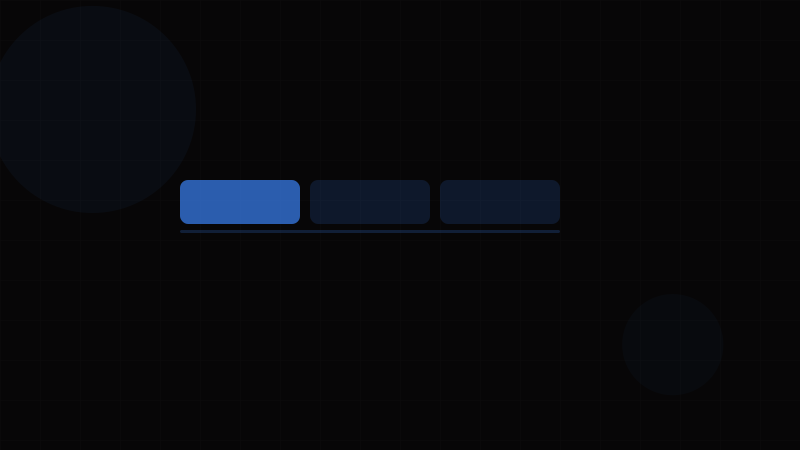
Tabs organize content into separate views where only one panel is visible at a time. They let users switch between related sections without leaving the page — reducing information overload while keeping everything within reach.
Tabs are one of the most effective UI patterns for content organization. They work because they mirror how humans categorize: grouping related things under clear labels. When done well, tabs reduce cognitive load. When misused, they hide critical content behind arbitrary labels.
When to use Tabs:
- To organize 2–7 views of related content within the same context (e.g., "Overview / Activity / Settings" on a profile page)
- When users need to compare or switch between views frequently
- When the tab labels are short, scannable, and meaningful
- As a local navigation pattern within a section (not global navigation)
When NOT to use Tabs:
- For sequential, step-by-step workflows — use a Stepper
- For more than 7 items — consider a Sidebar or Navigation Bar
- For content that users need to see simultaneously — use side-by-side layout or an Accordion (which allows multiple sections open at once)
- For filtering content — use a segmented control or filter buttons
- As the primary page navigation — use a Navigation Bar or Breadcrumb
Tabs vs. Accordion: Tabs show one panel at a time (mutually exclusive). Accordions can show multiple sections simultaneously. If users often need to reference two sections at once, use an accordion.
Variants
Tab Variants
| Variant | Description | Best For |
|---|---|---|
| Line / Underlined | Active tab has a bottom border indicator. Clean, minimal. | Most common. Works universally. |
| Filled / Solid | Active tab has a filled background (pill or rectangle). | Segmented control style. High contrast. |
| Outlined | Each tab has a border; active tab connects visually to the panel below. | Classic browser tab style. Content-heavy pages. |
| Vertical | Tabs stacked vertically on the left, content on the right. | Settings pages, dashboards with many sections. |
| Pill | Rounded pill-shaped active indicator. | Modern, consumer-facing apps. |
| Icon + Text | Each tab includes an icon alongside the label. | Dashboard navigation, app-like interfaces. |
| Icon Only | Tabs show only icons (mobile, toolbars). Must have aria-label. | Compact interfaces, mobile bottom navigation. |
Scrollable vs. Fixed
| Behavior | Description | Use When |
|---|---|---|
| Fixed | All tabs visible, evenly distributed | ≤5 tabs that fit comfortably |
| Scrollable | Tabs overflow horizontally, scroll arrows or swipe to reveal more | 5+ tabs or dynamic tab count |
| Wrapped | Tabs wrap to multiple lines | Avoid — multiple rows of tabs are confusing. Redesign your IA instead. |
Properties
Tabs Properties
| Property | Type | Default | Description |
|---|---|---|---|
value | string | — | Active tab value (controlled) |
defaultValue | string | — | Initially active tab (uncontrolled) |
onValueChange | (value: string) => void | — | Callback when the active tab changes |
orientation | 'horizontal' | 'vertical' | 'horizontal' | Tab list direction |
activationMode | 'automatic' | 'manual' | 'automatic' | Automatic: panel changes on arrow key navigation. Manual: requires Enter/Space to activate. |
loop | boolean | true | Arrow key navigation loops from last tab to first |
children | ReactNode | — | TabList + TabPanel children |
Tab Item Properties
| Property | Type | Default | Description |
|---|---|---|---|
value | string | — | Unique identifier for this tab |
disabled | boolean | false | Disables this tab |
icon | ReactNode | — | Icon displayed alongside the label |
Tab Panel Properties
| Property | Type | Default | Description |
|---|---|---|---|
value | string | — | Matches the corresponding tab's value |
forceMount | boolean | false | Keep panel in DOM even when inactive (for preserving state or SEO) |
Token Mappings
Design Token Mappings
| Token Category | Token Example | Tabs Usage |
|---|---|---|
| Color – Active | --color-primary-600 | Active tab text/indicator color |
| Color – Inactive | --color-text-muted | Inactive tab text color |
| Color – Indicator | --color-primary-600 | Underline or pill background |
| Color – Hover | --color-surface-hover | Tab hover background |
| Color – Panel | --color-surface | Tab panel background |
| Color – Border | --color-border-subtle | Bottom border of the tab list |
| Spacing | --space-3 (12px), --space-4 (16px) | Tab padding, gap between tabs |
| Typography | --font-size-sm, --font-weight-medium | Tab label styling |
| Border Radius | --radius-md | Pill/filled tab variant corners |
| Transition | --duration-fast (150ms) | Indicator slide animation |
Use our Spacing Calculator to establish consistent tab padding across breakpoints, and the Contrast Checker for active/inactive text contrast.
States
Tab States
| State | Visual Change | Behavior |
|---|---|---|
| Default (Inactive) | Muted text, no indicator | Clickable, not selected |
| Active | Primary-colored text + indicator (underline, pill, or filled background) | Panel content visible |
| Hover | Subtle background tint on the tab | Cursor changes to pointer |
| Focus | Visible focus ring around the tab | Keyboard navigation active |
| Disabled | Reduced opacity, muted text | Not interactive. aria-disabled="true". Skip in keyboard navigation. |
| Loading | Active panel shows skeleton or spinner content | Tab is selected, but its content is loading |
Indicator Animation
The active indicator should animate when switching tabs — sliding from the previous position to the new one. This animation:
- Provides spatial orientation (users see where they're going)
- Should be fast (150–200ms)
- Uses
transform: translateX()for performance (GPU-accelerated) - Can be configured with our Transition Generator
.tab-indicator {
  position: absolute;
  bottom: 0;
  height: 2px;
  background: var(--color-primary);
  transition: transform 150ms ease, width 150ms ease;
}
Accessibility
WCAG Requirements
| Criterion | Level | Requirement |
|---|---|---|
| SC 1.3.1 Info and Relationships | A | Use role="tablist", role="tab", and role="tabpanel" |
| SC 2.1.1 Keyboard | A | Full keyboard navigation with arrow keys |
| SC 4.1.2 Name, Role, Value | A | Each tab must have an accessible name. aria-selected must reflect state. |
| SC 2.4.7 Focus Visible | AA | Focus indicator must be visible on the active/focused tab |
ARIA Pattern
<div role="tablist" aria-label="Account settings">
  <button role="tab" aria-selected="true" aria-controls="panel-general" id="tab-general" tabindex="0">
    General
  </button>
  <button role="tab" aria-selected="false" aria-controls="panel-security" id="tab-security" tabindex="-1">
    Security
  </button>
  <button role="tab" aria-selected="false" aria-controls="panel-billing" id="tab-billing" tabindex="-1">
    Billing
  </button>
</div>
<div role="tabpanel" id="panel-general" aria-labelledby="tab-general" tabindex="0">
  <!-- General settings content -->
</div>
Key ARIA Details
tabindex="0"on the active tab,tabindex="-1"on inactive tabs. This creates a roving tabindex — Tab key enters the tab list, arrow keys navigate between tabs, Tab again exits to the panel.aria-controlslinks each tab to its panel.aria-labelledbyon the panel links back to its tab.aria-orientation="vertical"on the tablist when tabs are vertical (changes expected arrow key behavior).
Keyboard Interaction
| Key | Action |
|---|---|
| Tab | Moves focus into the tab list (lands on the active tab). Next Tab moves to the panel. |
| Arrow Right / Down | Moves to the next tab. In automatic mode, also activates it. |
| Arrow Left / Up | Moves to the previous tab. |
| Home | Moves to the first tab |
| End | Moves to the last tab |
| Enter / Space | In manual activation mode, activates the focused tab |
Automatic vs. Manual Activation
- Automatic (recommended): Pressing arrow keys both moves focus AND activates the tab. Faster for users.
- Manual: Arrow keys move focus but don't activate. User must press Enter/Space. Use this when tab switching triggers expensive operations (API calls, heavy rendering).
For tab accessibility patterns, see our ARIA Attributes Guide and Keyboard Accessibility Guide.
Usage Guidelines
Do's
- ✅ Keep tab labels to 1–2 words. "Settings" not "Application Settings and Preferences". Tabs are for quick scanning.
- ✅ Put the most important/commonly accessed tab first. Users read left to right — the first tab gets the most attention.
- ✅ Show the active tab on initial page load. Never show an empty state with no tab selected.
- ✅ Preserve tab state when navigating away and back. Nothing frustrates users more than losing their place.
- ✅ Use consistent content density across panels. A tab with 3 lines next to one with 300 lines suggests a structural problem.
Don'ts
- ❌ Don't use tabs for fewer than 2 panels. A single tab is just a heading.
- ❌ Don't wrap tabs to multiple lines. If your tabs don't fit horizontally, either reduce the number, shorten labels, or switch to vertical tabs / a Sidebar.
- ❌ Don't use tabs for sequential content. Steps 1→2→3 is a Stepper, not tabs. Tabs imply no order.
- ❌ Don't mix tab types in the same tab bar (e.g., some tabs navigate to pages, others show inline content). Consistent behavior is critical.
- ❌ Don't lazy-load all tab panels if the data is small. Pre-render panels and toggle visibility for instant switching. Only lazy-load for expensive/large content.
Content Guidelines
- Tab labels should be nouns (Overview, Settings, Activity) not verbs (View, Configure, Track).
- Use sentence case or title case consistently — don't mix.
- If tabs need badges (notification counts), keep them small and place them after the label: "Messages (3)".
- Tab panels should start with content immediately — don't repeat the tab label as a heading inside the panel.
Code Snippets
<div class="tabs">
  <div role="tablist" aria-label="Project details">
    <button
      role="tab"
      aria-selected="true"
      aria-controls="panel-overview"
      id="tab-overview"
      tabindex="0"
    >
      Overview
    </button>
    <button
      role="tab"
      aria-selected="false"
      aria-controls="panel-activity"
      id="tab-activity"
      tabindex="-1"
    >
      Activity
    </button>
    <button
      role="tab"
      aria-selected="false"
      aria-controls="panel-settings"
      id="tab-settings"
      tabindex="-1"
    >
      Settings
    </button>
  </div>

  <div
    role="tabpanel"
    id="panel-overview"
    aria-labelledby="tab-overview"
    tabindex="0"
  >
    <h3>Project Overview</h3>
    <p>Your project details and summary information.</p>
  </div>

  <div
    role="tabpanel"
    id="panel-activity"
    aria-labelledby="tab-activity"
    tabindex="0"
    hidden
  >
    <h3>Recent Activity</h3>
    <p>Timeline of changes and updates.</p>
  </div>

  <div
    role="tabpanel"
    id="panel-settings"
    aria-labelledby="tab-settings"
    tabindex="0"
    hidden
  >
    <h3>Project Settings</h3>
    <p>Configuration and preferences.</p>
  </div>
</div>import { useState, useRef, type ReactNode, type KeyboardEvent } from "react";
interface Tab {
value: string;
label: string;
icon?: ReactNode;
disabled?: boolean;
}
interface TabsProps {
tabs: Tab[];
defaultValue?: string;
onChange?: (value: string) => void;
children: (activeValue: string) => ReactNode;
ariaLabel: string;
}
export default function Tabs({
tabs,
defaultValue,
onChange,
children,
ariaLabel,
}: TabsProps) {
const [active, setActive] = useState(defaultValue ?? tabs[0]?.value ?? "");
const tabRefs = useRef<(HTMLButtonElement | null)[]>([]);
const handleKeyDown = (e: KeyboardEvent, index: number) => {
const enabledTabs = tabs.filter((t) => !t.disabled);
const currentEnabled = enabledTabs.findIndex((t) => t.value === tabs[index].value);
let next: number | null = null;
if (e.key === "ArrowRight" || e.key === "ArrowDown") {
e.preventDefault();
const nextTab = enabledTabs[(currentEnabled + 1) % enabledTabs.length];
next = tabs.findIndex((t) => t.value === nextTab.value);
} else if (e.key === "ArrowLeft" || e.key === "ArrowUp") {
e.preventDefault();
const prevTab = enabledTabs[(currentEnabled - 1 + enabledTabs.length) % enabledTabs.length];
next = tabs.findIndex((t) => t.value === prevTab.value);
} else if (e.key === "Home") {
e.preventDefault();
next = tabs.findIndex((t) => t.value === enabledTabs[0].value);
} else if (e.key === "End") {
e.preventDefault();
next = tabs.findIndex((t) => t.value === enabledTabs[enabledTabs.length - 1].value);
}
if (next !== null) {
tabRefs.current[next]?.focus();
setActive(tabs[next].value);
onChange?.(tabs[next].value);
}
};
return (
<div className="tabs">
<div role="tablist" aria-label={ariaLabel}>
{tabs.map((tab, i) => (
<button
key={tab.value}
ref={(el) => { tabRefs.current[i] = el; }}
role="tab"
aria-selected={active === tab.value}
aria-controls={`panel-${tab.value}`}
aria-disabled={tab.disabled || undefined}
id={`tab-${tab.value}`}
tabIndex={active === tab.value ? 0 : -1}
onClick={() => {
if (!tab.disabled) { setActive(tab.value); onChange?.(tab.value); }
}}
onKeyDown={(e) => handleKeyDown(e, i)}
>
{tab.icon} {tab.label}
</button>
))}
</div>
<div
role="tabpanel"
id={`panel-${active}`}
aria-labelledby={`tab-${active}`}
tabIndex={0}
>
{children(active)}
</div>
</div>
);
}
// Usage
<Tabs
ariaLabel="Account settings"
tabs={[
{ value: "general", label: "General" },
{ value: "security", label: "Security" },
{ value: "billing", label: "Billing" },
]}
onChange={(tab) => console.log("Switched to", tab)}
>
{(active) => (
<>
{active === "general" && <GeneralSettings />}
{active === "security" && <SecuritySettings />}
{active === "billing" && <BillingSettings />}
</>
)}
</Tabs>Design Systems
Cross-System Comparison
| Feature | Material 3 | Shadcn/ui | Radix | Ant Design |
|---|---|---|---|---|
| Component | Tabs (Primary/Secondary) | Tabs (Radix-based) | Tabs primitive | Tabs |
| Orientation | Horizontal only (official) | Both via Radix | Horizontal + Vertical | Horizontal + Vertical (tabPosition) |
| Indicator animation | Material motion (spring) | CSS transition | BYO | CSS transition |
| Scrollable | Built-in scroll arrows | Not built-in | Not built-in | Scroll + "More" dropdown |
| Closable tabs | Not built-in | Not built-in | Not built-in | type="editable-card" |
| Icons | Supported (top/leading) | Manual via children | Manual | icon prop on TabPane |
| Badges | Not built-in | Manual | Manual | tab prop accepts ReactNode |
| Lazy loading | Not built-in | forceMount for opt-in | forceMount prop | destroyInactiveTabPane |
| Activation mode | Automatic | Configurable via Radix | activationMode prop | Automatic |
Notable Approaches
Material 3 distinguishes between "Primary Tabs" (full-width, main navigation within a page) and "Secondary Tabs" (compact, nested within a section). Primary tabs have a taller height and bolder indicator. This distinction is useful — consider whether your tabs are the page's main organizer or a local section organizer.
Radix Tabs offers the cleanest primitives: Tabs.Root, Tabs.List, Tabs.Trigger, Tabs.Content. The activationMode prop lets you choose between automatic (arrow keys switch tabs) and manual (arrow keys move focus, Enter activates). This is important for tabs that trigger data fetching.
Shadcn/ui wraps Radix's primitives with Tailwind styling. The default styling is minimal — a bottom border indicator. It's intentionally unopinionated, expecting you to customize.
Ant Design offers type="editable-card" which adds close buttons and a "+" button for dynamic tab management — useful for IDE-style interfaces, browser-like tab bars, or document editors. This is a genuinely useful feature that most other systems lack.
A trend in 2025-2026: Animated tab indicators using layout animations (Framer Motion) or CSS View Transitions. The indicator smoothly slides from one tab to the next, creating a polished feel. See our Framer Motion Guide and CSS View Transitions guide for implementation details.