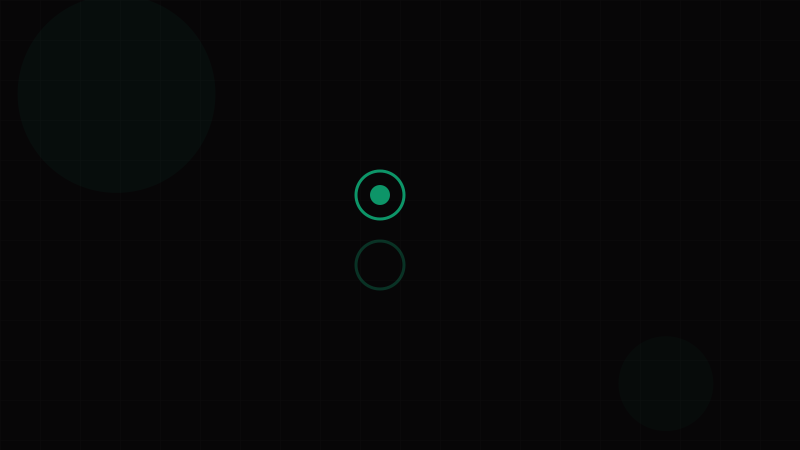
Overview
The Radio Button is a form input that lets users select exactly one option from a mutually exclusive set. Unlike a Checkbox, which allows multiple selections, radio buttons enforce a single-choice constraint — selecting one option automatically deselects the previously selected option in the same group.
Radio buttons always operate as a group. A lone radio button is an anti-pattern because once selected, the user cannot deselect it without choosing a different option (there's no "uncheck"). If you need a single binary toggle, use a Switch or Checkbox instead.
The name "radio button" comes from the mechanical preset buttons on old car radios: pressing one button would pop out the previously pressed button. This physical metaphor — mutually exclusive selection — maps directly to the digital component.
When to use Radio Buttons:
- Selecting exactly one option from 2–7 visible choices
- When users need to see and compare all options simultaneously
- Form fields where the choice is required (one must always be selected)
- Settings or preferences with mutually exclusive values
When NOT to use Radio Buttons:
- More than ~7 options — use a Select or Combobox to save space
- Multiple selections allowed — use Checkboxes
- Binary on/off toggle — use a Switch
- Actions or navigation — use Buttons or Tabs
Radio buttons should almost always have a default selection. Leaving all options unselected forces the user to make a choice they might not understand yet, and it creates validation complexity. If "no choice" is a valid state, consider adding an explicit "None" or "No preference" option.
Use the Contrast Checker to verify that the selected indicator (filled circle) meets 3:1 non-text contrast against the radio's background (WCAG 1.4.11).
Variants
Visual Variants
| Variant | Description | Common In |
|---|---|---|
| Standard | Circular outline with a filled inner circle when selected. The classic radio. | Every platform and design system |
| Bordered / Card | Each option is wrapped in a bordered container that highlights on selection. | Pricing plans, shipping methods, payment options |
| Tile / Block | Full-width selectable cards with icons, descriptions, and visual emphasis. | Onboarding flows, product configuration |
| Button Group | Options styled as a segmented button bar. Visually identical to a Button Group. | Toolbars, compact filters, alignment pickers |
| Custom Icon | The radio circle is replaced with a custom icon or illustration. | Theme pickers, avatar selectors |
Size Variants
| Size | Circle Diameter | Inner Dot | Label Size | Use Case |
|---|---|---|---|---|
| sm | 16px | 8px | 13px | Dense forms, table rows, sidebars |
| md | 20px | 10px | 14px | Default for most form contexts |
| lg | 24px | 12px | 16px | Mobile-first, touch-optimized, prominent choices |
Orientation
| Layout | Description | Best For |
|---|---|---|
| Vertical | Options stacked top-to-bottom. Default. | Most forms — easy scanning and comparison |
| Horizontal | Options placed side-by-side. | 2–4 short-label options with ample horizontal space |
| Grid | Options arranged in a 2D grid of tiles or cards. | Visual selectors (colors, themes, plans) |
The bordered/card variant is particularly effective for high-stakes choices like pricing tiers or shipping methods. Wrapping each option in a visible container increases the hit target (WCAG 2.5.8 Target Size) and makes the currently-selected option scannable at a glance.
Properties
Radio Group Properties
| Property | Type | Default | Description |
|---|---|---|---|
name | string | — | Required. Groups radios together. All radios sharing the same name form a mutually exclusive set. |
value | string | — | The currently selected value (controlled mode) |
defaultValue | string | — | Initial selected value (uncontrolled mode) |
onChange | (value: string) => void | — | Callback fired when selection changes |
orientation | 'vertical' | 'horizontal' | 'vertical' | Layout direction of the radio items |
disabled | boolean | false | Disables all radios in the group |
required | boolean | false | Makes selection mandatory for form validation |
label | string | — | Visible label for the radio group (rendered as <legend> inside <fieldset>) |
error | string | — | Error message displayed below the group |
Individual Radio Properties
| Property | Type | Default | Description |
|---|---|---|---|
value | string | — | Required. The value this radio represents |
label | string | ReactNode | — | The visible label next to the radio circle |
description | string | — | Secondary text below the label (for card variants) |
disabled | boolean | false | Disables this specific radio option |
id | string | auto | The HTML id attribute. Auto-generated if not provided. |
Critical: The name attribute is what creates the mutually exclusive group in native HTML. Without a shared name, radios won't deselect each other. In React component libraries, the parent RadioGroup component typically manages this automatically.
Token Mappings
Design Token Mappings
| Token Category | Token Example | Radio Usage |
|---|---|---|
| Color – Border | --color-neutral-400 | Unselected radio circle border |
| Color – Primary | --color-primary-600 | Selected radio fill and border |
| Color – Dot | --color-white | Inner dot on selected state |
| Color – Error | --color-error-600 | Border color in error/invalid state |
| Color – Disabled | --color-neutral-200 | Border and fill when disabled |
| Color – Label | --color-neutral-900 | Radio label text |
| Color – Description | --color-neutral-500 | Secondary description text |
| Spacing – Gap | --space-2 (8px) | Gap between radio circle and label |
| Spacing – Group Gap | --space-3 (12px) | Vertical spacing between radio items |
| Border Width | --border-width-2 (2px) | Radio circle border thickness |
| Border Radius | 50% | Always circular — not token-driven |
| Focus Ring | --color-focus-ring, --focus-ring-offset | Keyboard focus indicator |
| Transition | --duration-fast (150ms) | Selection state change animation |
| Shadow | --shadow-sm | Card variant selected state elevation |
The radio circle itself is always perfectly round (border-radius: 50%), so the Border Radius Generator doesn't apply to the radio control. However, for card/tile variants, the container card's corner radius is fully token-driven and customizable.
States
Interactive States
| State | Visual Treatment | Behavior |
|---|---|---|
| Default (Unselected) | Empty circle with neutral border. Label in default text color. | Ready for selection. |
| Hover (Unselected) | Border darkens or background tint appears. Cursor: pointer. | Indicates interactivity. |
| Selected | Circle filled with primary color and white inner dot. Border matches primary. | Represents the active choice. |
| Hover (Selected) | Slightly darker primary fill. | Confirms the element is interactive even when selected. |
| Focus-Visible | 2px focus ring with offset around the radio circle (or the entire card in card variants). | Keyboard navigation indicator. Must meet WCAG 2.4.13 (Focus Appearance). |
| Disabled (Unselected) | Muted border and label. Cursor: not-allowed. | Not interactive. Removed from tab order unless using aria-disabled. |
| Disabled (Selected) | Muted primary fill with reduced-opacity dot. | Shows the locked-in selection. |
| Error / Invalid | Red border on all radios in the group. Error message below. | Validation failed — the user must make a selection. |
| Read-only | Selected state visible but no hover/click response. | Shows the value without allowing changes (less common for radios). |
State Transitions
The selection transition should be snappy — 100–150ms with ease-out. The inner dot can scale from 0 to 1 for a satisfying "pop" effect. Avoid elaborate animations; radio selection must feel instantaneous because users are comparing options rapidly.
For card variants, the border color and optional shadow transition should be similarly fast. A box-shadow animation (e.g., adding --shadow-sm) on the selected card gives tactile feedback without feeling sluggish.
Accessibility
Accessibility Requirements
Radio buttons have excellent native HTML support — when you use <input type="radio"> correctly, the browser handles most accessibility behavior for free.
Semantic Structure (WCAG 1.3.1 Info and Relationships):
- Wrap the group in a
<fieldset>with a<legend>that describes the question or label. Screen readers announce the legend before each option — "Shipping method: Standard, radio button, 1 of 3." - Each
<input type="radio">must have an associated<label>viafor/idpairing or wrapping. - All radios in the group share the same
nameattribute.
Keyboard Interaction (WCAG 2.1.1 Keyboard):
Tabmoves focus to the radio group (landing on the selected radio, or the first radio if none is selected).Arrow Up/Arrow Leftmoves to the previous option and selects it.Arrow Down/Arrow Rightmoves to the next option and selects it.- Arrow keys loop — pressing Down on the last option wraps to the first.
Spaceselects the focused radio (though arrow keys already select, so Space is redundant but expected).
This "roving tabindex" pattern means the entire radio group is a single tab stop, which is more efficient than tabbing through every option individually.
Focus Visibility (WCAG 2.4.7 / 2.4.13):
- The focused radio must show a visible focus ring — at least 2px solid with an offset from the control.
- For card variants, the focus ring should surround the entire card, not just the radio circle inside it.
Error Identification (WCAG 3.3.1 / 3.3.3):
- When the group is required and no selection is made, display an error message associated with the group via
aria-describedbyon the<fieldset>pointing to the error text. - Don't rely solely on red color to indicate errors (WCAG 1.4.1 Use of Color) — include an error icon and text.
Non-Text Contrast (WCAG 1.4.11):
- The radio circle border must have ≥3:1 contrast against the surrounding background.
- The filled selected state must also meet 3:1. Use the Contrast Checker to verify your primary color against the form background.
Target Size (WCAG 2.5.8):
- The clickable area for each radio option (including its label) should be at least 24×24px (Level AA). Card variants naturally exceed this. For standard radios, ensure the label is part of the click target by using proper
<label>association.
Custom Radios: If you replace the native radio with a custom-styled element, you must:
- Apply
role="radiogroup"to the container androle="radio"to each option. - Manage
aria-checked="true|false"on each option. - Implement roving tabindex (
tabindex="0"on the selected/focused item,tabindex="-1"on others). - Handle all keyboard events (Arrow keys, Space).
- Ensure focus is visible and programmatically managed.
Native <input type="radio"> with CSS hiding (appearance: none + custom styling) is almost always preferable to the ARIA approach. You get keyboard behavior, form integration, and screen reader support for free.
Usage Guidelines
Do's
- Always group radios — a single radio is meaningless. Minimum 2 options.
- Pre-select a default when possible. If no default makes sense, add an explicit "None" option.
- Use a
<fieldset>and<legend>to label the group. "Shipping method:" as the legend, not a heading above the group. - Keep labels short — one line per option. Use the description slot for additional detail.
- List options in a logical order — alphabetical, by popularity, by ascending value, or by user preference data.
- Make the entire row clickable — not just the circle. Label association and adequate padding handle this.
Don'ts
- Don't use radios for actions — they're for selection, not execution.
- Don't nest radios — revealing sub-options based on a radio selection should use indented form fields, not nested radio groups.
- Don't dynamically change other radios — each group should be independent. If selection A hides Group B, use conditional rendering rather than disabling radios.
- Don't use more than ~7 options — beyond that, switch to a Select or Combobox.
- Don't mix radio and checkbox patterns — if some options are multi-select and others are single-select, redesign the form.
- Don't disable individual options without explanation — a tooltip or helper text should explain why an option is unavailable.
Card Radio Best Practices
When using bordered card variants for high-stakes selections (pricing tiers, plans):
- Include a visual indicator (filled circle or checkmark) in addition to the border highlight.
- Show price, features, or descriptions within the card to reduce cognitive load.
- Highlight the recommended option with a badge or subtle background differentiation.
Code Snippets
<!-- Radio Group: Shipping Method -->
<fieldset class="radio-group" role="radiogroup" aria-required="true">
  <legend class="radio-group__legend">Shipping Method</legend>

  <div class="radio-group__options">
    <label class="radio" for="ship-standard">
      <input
        type="radio"
        id="ship-standard"
        name="shipping"
        value="standard"
        checked
        class="radio__input"
      />
      <span class="radio__control" aria-hidden="true"></span>
      <span class="radio__label">Standard (5–7 days)</span>
    </label>

    <label class="radio" for="ship-express">
      <input
        type="radio"
        id="ship-express"
        name="shipping"
        value="express"
        class="radio__input"
      />
      <span class="radio__control" aria-hidden="true"></span>
      <span class="radio__label">Express (2–3 days)</span>
    </label>

    <label class="radio" for="ship-overnight">
      <input
        type="radio"
        id="ship-overnight"
        name="shipping"
        value="overnight"
        class="radio__input"
      />
      <span class="radio__control" aria-hidden="true"></span>
      <span class="radio__label">Overnight (next day)</span>
    </label>
  </div>
</fieldset>

<style>
.radio-group__legend {
  font-weight: 600;
  font-size: 0.875rem;
  margin-bottom: 0.5rem;
  color: var(--color-neutral-900);
}

.radio-group__options {
  display: flex;
  flex-direction: column;
  gap: 0.75rem;
}

.radio {
  display: flex;
  align-items: center;
  gap: 0.5rem;
  cursor: pointer;
  position: relative;
}

.radio__input {
  position: absolute;
  opacity: 0;
  width: 0;
  height: 0;
}

.radio__control {
  width: 20px;
  height: 20px;
  border: 2px solid var(--color-neutral-400);
  border-radius: 50%;
  display: flex;
  align-items: center;
  justify-content: center;
  flex-shrink: 0;
  transition: border-color 150ms ease, background-color 150ms ease;
}

.radio__control::after {
  content: "";
  width: 10px;
  height: 10px;
  border-radius: 50%;
  background: var(--color-primary-600);
  transform: scale(0);
  transition: transform 150ms ease;
}

.radio__input:checked + .radio__control {
  border-color: var(--color-primary-600);
}

.radio__input:checked + .radio__control::after {
  transform: scale(1);
}

.radio__input:focus-visible + .radio__control {
  outline: 2px solid var(--color-focus-ring);
  outline-offset: 2px;
}

.radio__input:disabled + .radio__control {
  border-color: var(--color-neutral-200);
  background: var(--color-neutral-100);
  cursor: not-allowed;
}

.radio__input:disabled ~ .radio__label {
  color: var(--color-neutral-400);
}

.radio__label {
  font-size: 0.875rem;
  color: var(--color-neutral-800);
  user-select: none;
}
</style>import React, { createContext, useContext, useState, useId } from "react";
interface RadioGroupContextValue {
name: string;
value: string;
onChange: (value: string) => void;
disabled?: boolean;
}
const RadioGroupContext = createContext<RadioGroupContextValue | null>(null);
interface RadioGroupProps {
name?: string;
value?: string;
defaultValue?: string;
onChange?: (value: string) => void;
disabled?: boolean;
orientation?: "vertical" | "horizontal";
label: string;
error?: string;
required?: boolean;
children: React.ReactNode;
}
export function RadioGroup({
name,
value: controlledValue,
defaultValue = "",
onChange,
disabled = false,
orientation = "vertical",
label,
error,
required = false,
children,
}: RadioGroupProps) {
const autoId = useId();
const groupName = name ?? autoId;
const errorId = error ? `${groupName}-error` : undefined;
const [internal, setInternal] = useState(defaultValue);
const value = controlledValue ?? internal;
const handleChange = (val: string) => {
setInternal(val);
onChange?.(val);
};
return (
<RadioGroupContext.Provider
value={{ name: groupName, value, onChange: handleChange, disabled }}
>
<fieldset
role="radiogroup"
aria-required={required}
aria-invalid={!!error}
aria-describedby={errorId}
style={{ border: "none", padding: 0, margin: 0 }}
>
<legend style={{ fontWeight: 600, fontSize: "0.875rem", marginBottom: "0.5rem" }}>
{label}
{required && <span aria-hidden="true"> *</span>}
</legend>
<div
style={{
display: "flex",
flexDirection: orientation === "horizontal" ? "row" : "column",
gap: orientation === "horizontal" ? "1.5rem" : "0.75rem",
}}
>
{children}
</div>
{error && (
<p id={errorId} role="alert" style={{ color: "var(--color-error-600)", fontSize: "0.8125rem", marginTop: "0.5rem" }}>
{error}
</p>
)}
</fieldset>
</RadioGroupContext.Provider>
);
}
interface RadioProps {
value: string;
label: string;
description?: string;
disabled?: boolean;
}
export function Radio({ value, label, description, disabled: localDisabled }: RadioProps) {
const ctx = useContext(RadioGroupContext);
if (!ctx) throw new Error("Radio must be used within RadioGroup");
const id = useId();
const isDisabled = localDisabled || ctx.disabled;
const isSelected = ctx.value === value;
return (
<label
htmlFor={id}
style={{
display: "flex",
alignItems: "flex-start",
gap: "0.5rem",
cursor: isDisabled ? "not-allowed" : "pointer",
opacity: isDisabled ? 0.5 : 1,
}}
>
<input
type="radio"
id={id}
name={ctx.name}
value={value}
checked={isSelected}
disabled={isDisabled}
onChange={() => ctx.onChange(value)}
style={{ position: "absolute", opacity: 0, width: 0, height: 0 }}
/>
<span
aria-hidden="true"
style={{
width: 20,
height: 20,
borderRadius: "50%",
border: `2px solid ${isSelected ? "var(--color-primary-600)" : "var(--color-neutral-400)"}`,
display: "flex",
alignItems: "center",
justifyContent: "center",
flexShrink: 0,
marginTop: 2,
}}
>
{isSelected && (
<span
style={{
width: 10,
height: 10,
borderRadius: "50%",
background: "var(--color-primary-600)",
}}
/>
)}
</span>
<div>
<span style={{ fontSize: "0.875rem", color: "var(--color-neutral-800)" }}>{label}</span>
{description && (
<span style={{ display: "block", fontSize: "0.8125rem", color: "var(--color-neutral-500)", marginTop: 2 }}>
{description}
</span>
)}
</div>
</label>
);
}Design Systems
Design System Implementations
Material Design 3 uses a 20px radio with a 10px inner dot and a "state layer" — a circular ripple that expands behind the control on hover (8% opacity) and press (12% opacity). Selected radios use the primary color for both the outer ring and inner dot. Material 3 introduced a subtle spring animation for the dot scaling in. The touch target is 48px minimum, achieved through transparent padding around the 20px control.
Ant Design provides Radio and Radio.Group with optionType="button" for segmented button-style radios. It supports buttonStyle="solid" (filled selected state) or buttonStyle="outline" (border-only selected state). Ant's radios support size (small, middle, large) and integrate directly with Form.Item for validation. The default radio uses a smooth CSS scale transition on the inner dot.
Radix UI offers an unstyled RadioGroup primitive with Root, Item, and Indicator sub-components. It handles roving tabindex, arrow-key navigation, and all ARIA attributes automatically. You supply all styling. The Indicator component renders only when the radio is selected, making animated entry straightforward with CSS.
Chakra UI provides RadioGroup and Radio with colorScheme, size (sm, md, lg), and isDisabled/isInvalid props. Chakra uses a CSS ::before pseudo-element for the inner dot with a scale transform, and applies a blue focus ring via its focus-visible system.
Headless UI (Tailwind Labs) offers a RadioGroup component built entirely with ARIA. It uses RadioGroup, RadioGroup.Option, RadioGroup.Label, and RadioGroup.Description. Selection is managed by value/onChange, and each option exposes render props (checked, active, disabled) for conditional styling. It's the most flexible headless implementation for card-style radios.
React Aria (Adobe) provides useRadioGroup and useRadio hooks with complete ARIA compliance, roving tabindex, and form integration. It handles label association, required validation, error messages, and internationalized announcements. The hooks work with any visual representation.
For verifying radio indicator contrast against backgrounds, use the Contrast Checker.