Overview
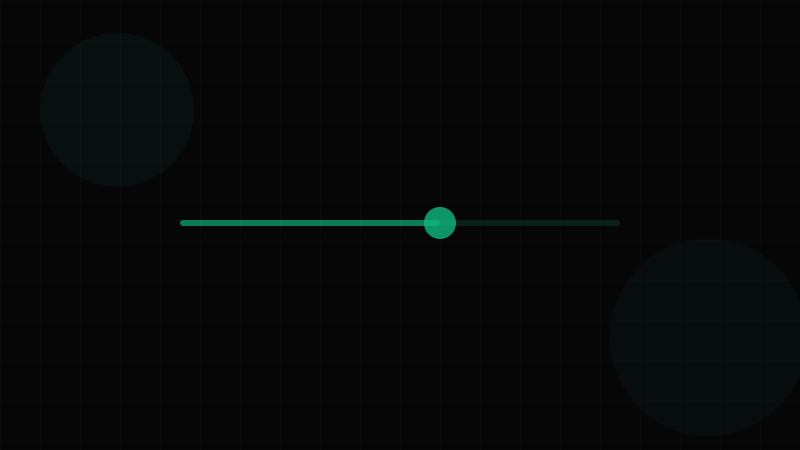
The Slider (also called a range input, track bar, or range slider) is a data input component that lets users select a value — or a range of values — from a continuous or stepped spectrum by dragging a thumb along a track. It's the digital equivalent of a volume knob or mixing console fader.
Sliders excel when the exact value matters less than the relative position within a range. Setting volume to 73% is meaningful; typing "73" in a text field feels arbitrary. Sliders provide spatial, proportional understanding that numeric inputs cannot.
However, sliders are one of the most misused components in UI design. They're frequently deployed where a Text Input or Select would be more appropriate — particularly for precise values, small ranges, or non-linear scales. A slider for selecting your birth year (1920–2010) is a UX anti-pattern: the thumb represents ~0.3 years per pixel, making precision impossible.
When to use a Slider:
- Volume, brightness, opacity, zoom — continuous values where approximate is fine
- Price range filters (e-commerce)
- Rating or satisfaction scales (1–10)
- Time range selection (video trimming, schedule selection)
- Any continuous value where spatial feedback provides intuition
When NOT to use a Slider:
- Precise numeric input (age, quantity, temperature) — use a Text Input with
type="number" - Selection from a small set of discrete options — use a Select or radio group
- Ranges with very large spans (1–10,000) — precision per pixel becomes unusable
- Non-linear scales where equal visual distance ≠ equal value distance (without explicit marks)
- Mobile forms where fat-finger precision on a thin track causes frustration
Use the Color Palette Generator to style slider tracks and fills. Preview thumb drag animation with the Transition Generator. Verify track and thumb contrast with the Contrast Checker.
Variants
Functional Variants
| Variant | Description | Use Case |
|---|---|---|
| Single Value | One thumb on a track. Selects a single value. | Volume, brightness, zoom, single threshold |
| Range | Two thumbs defining a min/max range. | Price filters, date ranges, audio trimming |
| Multi-thumb | Three or more thumbs. | Audio EQ bands, complex range definitions |
Visual Variants
| Variant | Description | Use Case |
|---|---|---|
| Continuous | Smooth track, no discrete positions. Thumb can land anywhere. | Volume, opacity, any float-value input |
| Stepped / Discrete | Thumb snaps to defined steps. Tick marks visible on track. | Rating (1–5), predefined values, T-shirt sizing |
| With Marks | Tick marks and/or labels at intervals along the track. | Temperature (°F marks at 60, 70, 80, 90), zoom levels |
| With Tooltip | A floating label above the thumb showing the current value. | Any slider where the exact value matters |
| Filled Track | The portion from min to thumb is colored (filled). | Volume, progress-like inputs |
| Vertical | Track runs top-to-bottom. | Audio mixer faders, equalizers, height selectors |
Size Variants
| Size | Track Height | Thumb Diameter | Use Case |
|---|---|---|---|
| sm | 4px | 16px | Compact settings, inline controls |
| md | 6px | 20px | Default for most interfaces |
| lg | 8px | 28px | Touch-first UIs, high-prominence controls |
Specialized Variants
- Color slider: A hue/saturation/lightness track for Color Pickers. Track background is a gradient.
- Time slider: Track represents a time span (video progress, schedule picker). May include buffered regions.
- Gradient slider: Track shows a gradient from one state to another (cold→hot, quiet→loud).
Properties
Slider Properties
| Property | Type | Default | Description |
|---|---|---|---|
value | number | [number, number] | — | Controlled value. Array for range sliders. |
defaultValue | number | [number, number] | min | Uncontrolled initial value |
min | number | 0 | Minimum value |
max | number | 100 | Maximum value |
step | number | 1 | Value increment. Use 0.1 for fine control, larger values for discrete steps. |
onChange | (value: number | [number, number]) => void | — | Fires continuously during drag |
onChangeEnd | (value: number | [number, number]) => void | — | Fires once on drag release. Use for expensive operations (API calls, heavy re-renders). |
disabled | boolean | false | Prevents interaction |
orientation | 'horizontal' | 'vertical' | 'horizontal' | Track direction |
marks | { value: number; label?: string }[] | — | Tick marks along the track |
showTooltip | 'always' | 'hover' | 'never' | 'hover' | When to display the value tooltip above the thumb |
formatValue | (value: number) => string | — | Custom value display (e.g., "$50", "80°F", "3x") |
fillTrack | boolean | true | Whether to color the filled portion of the track |
label | string | — | Accessible label for the slider |
aria-label | string | — | ARIA label when no visible label exists |
aria-valuetext | string | — | Human-readable value description (e.g., "medium" instead of "50") |
minStepsBetweenThumbs | number | 0 | Minimum distance between range slider thumbs (in steps) |
Important: Use onChangeEnd (not onChange) for API calls or expensive operations. onChange fires on every pixel of thumb movement during drag — potentially 60+ times per second. onChangeEnd fires once when the user releases.
Token Mappings
Design Token Mappings
Sliders touch many token categories across color, spacing, sizing, and motion. For the full token architecture, see the Design Tokens Complete Guide.
| Token Category | Token Example | Slider Usage |
|---|---|---|
| Color – Track | --color-neutral-200 | Unfilled track background |
| Color – Fill | --color-primary-500 | Filled track portion (min to thumb). Generate with Color Palette Generator. |
| Color – Thumb | --color-white or --color-primary-500 | Thumb fill color |
| Color – Thumb Border | --color-primary-600 | Thumb border for definition |
| Color – Mark | --color-neutral-400 | Tick mark color |
| Color – Tooltip BG | --color-neutral-900 | Tooltip background |
| Color – Tooltip Text | --color-white | Tooltip text color |
| Border Radius – Track | --radius-full (9999px) | Rounded track ends |
| Border Radius – Thumb | 50% | Circular thumb |
| Shadow – Thumb | --shadow-md | Thumb elevation |
| Shadow – Thumb Active | --shadow-lg | Elevated shadow during drag |
| Spacing – Track Height | 4px / 6px / 8px | Track thickness per size |
| Spacing – Thumb Size | 16px / 20px / 28px | Thumb diameter per size |
| Transition – Thumb | --duration-fast (150ms) | Hover scale/shadow transitions. Preview in Transition Generator. |
| Transition – Fill | --duration-fast (150ms) | Track fill width when value changes programmatically |
| Typography – Mark Label | --font-size-xs, --color-neutral-500 | Tick mark label text |
States
Slider States
| State | Visual Behavior | Implementation |
|---|---|---|
| Default | Track and thumb at current value. Cursor: pointer. | Render track with fill proportional to (value - min) / (max - min). |
| Hover | Thumb enlarges slightly or gains a halo/shadow. | :hover on thumb — transform: scale(1.15) or add box-shadow halo. |
| Focus-Visible | Focus ring around the thumb. | :focus-visible — 2px offset focus ring. Essential for keyboard users (WCAG 2.4.7). |
| Active / Dragging | Thumb is being dragged. May enlarge further, shadow deepens. | :active — increase shadow, optionally scale to 1.2×. Show tooltip if showTooltip="hover". |
| Disabled | Track and thumb dimmed. No interaction. Cursor: not-allowed. | disabled attribute. Reduce opacity to 0.5 or use muted token colors. |
| Stepped | Thumb snaps to nearest step on release. Tick marks visible. | Apply Math.round(value / step) * step on change. Render marks at each step. |
| Range (Two Thumbs) | Two thumbs with filled track between them. | Render two thumb elements. Prevent crossing (minStepsBetweenThumbs). |
| Error | Track or thumb turns red, error message below. | Apply danger variant color. Pair with validation message. |
Keyboard Interaction
| Key | Action |
|---|---|
| Arrow Right / Up | Increase value by one step |
| Arrow Left / Down | Decrease value by one step |
| Page Up | Increase by 10% of range (or a larger step) |
| Page Down | Decrease by 10% of range |
| Home | Set to minimum value |
| End | Set to maximum value |
These keyboard controls are required for WCAG 2.1.1 (Keyboard) compliance. For range sliders, Tab moves between thumbs.
Accessibility
Accessibility — Slider
Sliders are complex interactive widgets that must be fully operable via keyboard and properly announced by screen readers. Use the Contrast Checker to validate track, fill, and thumb visibility.
ARIA Pattern
The slider uses role="slider" with associated ARIA properties:
<!-- Single-value slider -->
<div class="slider-container">
  <label id="volume-label" for="volume-slider">Volume</label>
  <div class="slider-track">
    <div class="slider-fill" style="width: 70%"></div>
    <div role="slider"
         tabindex="0"
         id="volume-slider"
         aria-labelledby="volume-label"
         aria-valuenow="70"
         aria-valuemin="0"
         aria-valuemax="100"
         aria-valuetext="70 percent"
         class="slider-thumb"
         style="left: 70%">
    </div>
  </div>
</div>

<!-- Range slider (two thumbs) -->
<div class="slider-container">
  <label id="price-label">Price range</label>
  <div class="slider-track">
    <div role="slider"
         tabindex="0"
         aria-label="Minimum price"
         aria-valuenow="20"
         aria-valuemin="0"
         aria-valuemax="100"
         aria-valuetext="$20"
         class="slider-thumb">
    </div>
    <div role="slider"
         tabindex="0"
         aria-label="Maximum price"
         aria-valuenow="80"
         aria-valuemin="0"
         aria-valuemax="100"
         aria-valuetext="$80"
         class="slider-thumb">
    </div>
  </div>
</div>
WCAG Success Criteria
| Criterion | Level | Requirement for Sliders |
|---|---|---|
| 1.3.1 Info and Relationships (A) | A | Use role="slider" with aria-valuenow, aria-valuemin, aria-valuemax. Associate with a label via aria-labelledby or aria-label. |
| 1.4.1 Use of Color (A) | A | Don't rely solely on track fill color to communicate value. Provide the numeric value via tooltip, label, or aria-valuetext. |
| 1.4.3 Contrast (Minimum) (AA) | AA | Label and value text must have 4.5:1 contrast. Tooltip text must also meet this ratio. |
| 1.4.11 Non-text Contrast (AA) | AA | The thumb must have 3:1 contrast against the track. The filled track must have 3:1 against the unfilled track. Use the Contrast Checker. |
| 2.1.1 Keyboard (A) | A | Full keyboard operation: Arrow keys for step, Page Up/Down for jumps, Home/End for min/max. |
| 2.4.7 Focus Visible (AA) | AA | The thumb must show a clear focus indicator when focused via keyboard. |
| 2.5.1 Pointer Gestures (A) | A | Dragging is a path-based gesture. Ensure keyboard alternatives exist (Arrow keys provide the single-point alternative). |
| 4.1.2 Name, Role, Value (A) | A | Name (label), role (slider), and current value must be programmatically determinable. |
aria-valuetext
For sliders where the numeric value isn't meaningful on its own, provide aria-valuetext:
<!-- Temperature with unit -->
<div role="slider" aria-valuenow="72" aria-valuetext="72 degrees Fahrenheit">

<!-- Rating scale -->
<div role="slider" aria-valuenow="3" aria-valuetext="3 out of 5, Good">

<!-- Price -->
<div role="slider" aria-valuenow="50" aria-valuetext="$50">
Screen readers will announce the aria-valuetext instead of the raw number, providing meaningful context.
Touch Targets
On mobile, the slider thumb must meet the 44×44px minimum touch target (WCAG 2.5.8, AAA, but practically essential). Even if the visible thumb is 20px, expand the hit area with transparent padding or a larger pseudo-element.
Usage Guidelines
Do
- Pair sliders with a visible value display — either a tooltip on the thumb, a number beside the slider, or an adjacent Text Input that syncs bidirectionally.
- Use
onChangeEndfor API calls and expensive operations.onChangefires continuously during drag. - Provide marks for stepped sliders so users can see the discrete values they're choosing between.
- Set sensible min/max/step values. A 0–100 slider with step=1 has 101 possible values; a 0–1000 slider with step=1 has 1001 — the latter is too granular for a slider.
- Use filled tracks to reinforce the visual connection between the value and the minimum.
- Consider a combined slider + input pattern: the slider for quick approximate selection, the input for precise numeric entry. This is the best of both worlds.
- Ensure the thumb is at least 44px touchable area on mobile, even if visually smaller.
- Use
aria-valuetextfor units, labels, or descriptions: "72°F", "$50", "Medium."
Don't
- Don't use sliders for precise numeric entry. If users need to enter "73.5" exactly, a text input is better.
- Don't use sliders for very large ranges (1–10,000) without logarithmic scaling or stepped marks.
- Don't use sliders for non-obvious values. A slider for "number of employees" (1–10,000) gives no intuition about what "30% along the track" means.
- Don't use vertical sliders unless the context strongly calls for it (audio mixers, equalizers). Horizontal is the convention.
- Don't disable the slider without explanation. If a slider is disabled, show a tooltip or message explaining why.
- Don't make the track too thin on touch devices. A 4px track is extremely hard to tap. Use at least 8px on mobile or expand the touch area.
- Don't forget keyboard support. Many slider implementations are mouse-only, completely excluding keyboard and switch-access users.
Range Slider Specifics
- Prevent thumbs from crossing — enforce a minimum distance (
minStepsBetweenThumbs) - Tab between thumbs (first Tab = min thumb, second Tab = max thumb)
- Style the filled region between thumbs differently from the unfilled portions
- Label each thumb independently: "Minimum price" and "Maximum price"
Code Snippets
<!-- Basic Slider -->
<div class="slider-container">
  <div class="slider-header">
    <label id="volume-lbl" for="volume">Volume</label>
    <output id="volume-output">70%</output>
  </div>
  <input type="range" id="volume"
         min="0" max="100" value="70" step="1"
         aria-labelledby="volume-lbl"
         aria-valuetext="70 percent"
         oninput="document.getElementById('volume-output').textContent = this.value + '%'">
</div>

<!-- Custom Styled Slider -->
<div class="custom-slider">
  <label id="price-lbl">Price</label>
  <div class="slider-track" id="price-track">
    <div class="slider-fill" style="width: 50%"></div>
    <div class="slider-thumb"
         role="slider" tabindex="0"
         aria-labelledby="price-lbl"
         aria-valuenow="50"
         aria-valuemin="0"
         aria-valuemax="100"
         aria-valuetext="$50"
         style="left: 50%">
    </div>
  </div>
</div>

<!-- Slider with marks -->
<div class="slider-container">
  <label for="temp">Temperature</label>
  <input type="range" id="temp"
         min="60" max="90" value="72" step="1"
         list="temp-marks">
  <datalist id="temp-marks">
    <option value="60" label="60°"></option>
    <option value="70" label="70°"></option>
    <option value="80" label="80°"></option>
    <option value="90" label="90°"></option>
  </datalist>
</div>

<style>
  .slider-container {
    display: flex;
    flex-direction: column;
    gap: 4px;
    max-width: 300px;
  }
  .slider-header {
    display: flex;
    justify-content: space-between;
    font-size: 14px;
  }
  input[type="range"] {
    -webkit-appearance: none;
    width: 100%;
    height: 6px;
    background: var(--color-neutral-200);
    border-radius: 9999px;
    outline: none;
  }
  input[type="range"]::-webkit-slider-thumb {
    -webkit-appearance: none;
    width: 20px;
    height: 20px;
    background: white;
    border: 2px solid var(--color-primary-500);
    border-radius: 50%;
    cursor: pointer;
    box-shadow: 0 1px 3px rgba(0,0,0,0.2);
  }
  input[type="range"]:focus-visible {
    outline: 2px solid var(--color-focus-ring);
    outline-offset: 4px;
    border-radius: 9999px;
  }
  /* Custom slider */
  .slider-track {
    position: relative;
    height: 6px;
    background: var(--color-neutral-200);
    border-radius: 9999px;
  }
  .slider-fill {
    position: absolute;
    height: 100%;
    background: var(--color-primary-500);
    border-radius: 9999px;
  }
  .slider-thumb {
    position: absolute;
    top: 50%;
    width: 20px;
    height: 20px;
    background: white;
    border: 2px solid var(--color-primary-500);
    border-radius: 50%;
    transform: translate(-50%, -50%);
    cursor: pointer;
    box-shadow: 0 1px 3px rgba(0,0,0,0.2);
  }
  .slider-thumb:focus-visible {
    outline: 2px solid var(--color-focus-ring);
    outline-offset: 2px;
  }
</style>import { forwardRef, useCallback, useId, useRef, useState } from "react";
interface SliderProps {
value?: number;
defaultValue?: number;
min?: number;
max?: number;
step?: number;
onChange?: (value: number) => void;
onChangeEnd?: (value: number) => void;
disabled?: boolean;
label?: string;
showTooltip?: "always" | "hover" | "never";
formatValue?: (value: number) => string;
fillTrack?: boolean;
marks?: { value: number; label?: string }[];
className?: string;
}
export const Slider = forwardRef<HTMLInputElement, SliderProps>(
(
{
value: controlledValue,
defaultValue,
min = 0,
max = 100,
step = 1,
onChange,
onChangeEnd,
disabled = false,
label,
showTooltip = "hover",
formatValue = (v) => String(v),
fillTrack = true,
marks,
className,
...props
},
ref
) => {
const id = useId();
const [internalValue, setInternalValue] = useState(defaultValue ?? min);
const val = controlledValue ?? internalValue;
const pct = ((val - min) / (max - min)) * 100;
const handleChange = useCallback(
(e: React.ChangeEvent<HTMLInputElement>) => {
const v = Number(e.target.value);
setInternalValue(v);
onChange?.(v);
},
[onChange]
);
return (
<div className={className} style={{ opacity: disabled ? 0.5 : 1 }}>
{label && (
<div style={{ display: "flex", justifyContent: "space-between", marginBottom: 4, fontSize: 14 }}>
<label htmlFor={id}>{label}</label>
<output>{formatValue(val)}</output>
</div>
)}
<div style={{ position: "relative" }}>
<input
ref={ref}
type="range"
id={id}
min={min}
max={max}
step={step}
value={val}
disabled={disabled}
onChange={handleChange}
onMouseUp={() => onChangeEnd?.(val)}
onTouchEnd={() => onChangeEnd?.(val)}
aria-valuetext={formatValue(val)}
list={marks ? `${id}-marks` : undefined}
style={{ width: "100%" }}
{...props}
/>
{marks && (
<datalist id={`${id}-marks`}>
{marks.map((m) => (
<option key={m.value} value={m.value} label={m.label} />
))}
</datalist>
)}
</div>
</div>
);
}
);
Slider.displayName = "Slider";Design Systems
Design System Implementations
Material Design 3 redesigned its slider with several notable features: the thumb rests directly on the track (no gap), the filled portion uses the primary color with a "stop indicator" (small dot) at the min and max positions, and discrete sliders show tick marks on the track. Material 3 supports a "range slider" with two thumbs and offers a tooltip-like "value indicator" that appears on interaction — a teardrop-shaped bubble above the thumb showing the current value. The animation is spring-based, with the value indicator scaling up from 0 when the thumb is pressed.
Ant Design provides a Slider component with range prop for dual-thumb mode, marks for labeled tick marks, step (set to null for marks-only snapping), tooltip configuration (always, hover, or custom formatter), and dots for rendering visible step dots on the track. Ant's range slider supports draggableTrack — you can drag the filled region between the two thumbs to move the entire range without changing its width.
Radix UI provides an unstyled Slider primitive with Root, Track, Range (the filled portion), and Thumb sub-components. It supports multiple thumbs natively (just render multiple Thumb children), handles keyboard navigation, and manages all ARIA attributes. Styling is entirely your responsibility — combine with Tailwind or CSS-in-JS.
Chakra UI's Slider uses a compound component API: Slider, SliderTrack, SliderFilledTrack, SliderThumb, and SliderMark. It supports colorScheme, orientation (horizontal/vertical), isReversed, and focusThumbOnChange. Chakra's range slider is a separate RangeSlider component with the same sub-component structure but two thumbs.
Headless UI does not provide a slider component — it focuses on disclosure widgets, menus, and modals. For headless slider behavior, Radix or React Aria (Adobe) are the go-to choices.
React Aria (Adobe's accessibility library) provides useSlider and useSliderThumb hooks that handle all ARIA attributes, keyboard interaction, and touch/mouse dragging. It's the most technically rigorous implementation, correctly handling RTL layouts, vertical orientation, and multi-thumb interactions.
Bootstrap doesn't offer a custom slider component — it relies on the native <input type="range"> with browser-default styling. Custom styling requires overriding vendor-prefixed pseudo-elements (::-webkit-slider-thumb, ::-moz-range-thumb), which is fragile and inconsistent across browsers.
For styling slider tracks and fills with accessible color combinations, use the Color Palette Generator. Preview thumb interaction animations in the Transition Generator.