Overview
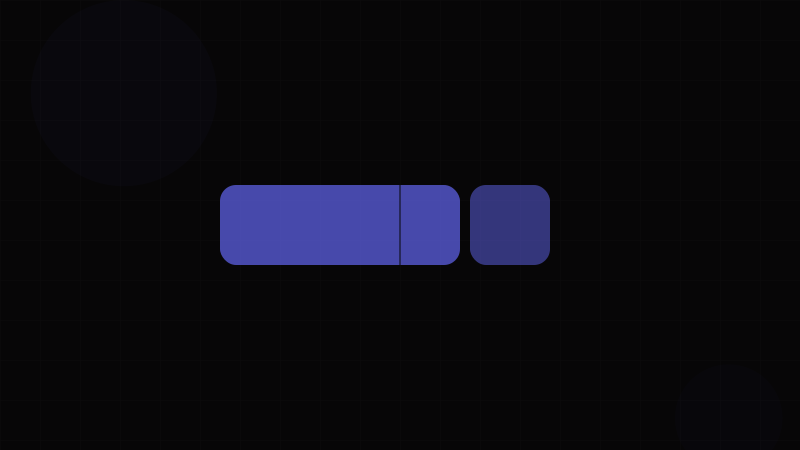
The Split Button combines a default action button with an adjacent dropdown trigger, creating a compound control that offers a primary action alongside alternative options. Clicking the main area executes the default action immediately; clicking the dropdown arrow reveals additional related actions.
This pattern solves the "too many buttons" problem while preserving one-click access to the most common action. Consider a "Save" split button: the main click saves normally, while the dropdown offers "Save as Draft", "Save and Close", "Save as Template". The user gets speed (one click for the common case) and flexibility (dropdown for alternatives).
When to use a Split Button:
- When there's a clear primary action with related secondary options (Save / Save As / Save and Close)
- For "do the last thing I did" patterns where the default action changes based on history
- In toolbar contexts where space is limited but multiple related actions exist
- For deployment/publish workflows (Publish / Publish to Staging / Schedule)
When NOT to use a Split Button:
- When all actions are equally important — use a Button Group instead
- When there's only one action — use a standard Button
- When the dropdown options are navigation links — use a Dropdown Menu with a trigger button
- When actions are unrelated — split buttons imply a family of related actions
- On mobile where the small dropdown trigger is hard to tap — use a full Dropdown Menu
The split button's divider and dropdown trigger must be visually distinct from the main action. Use the Button Generator to style both segments consistently. Verify the divider and dropdown arrow contrast with the Contrast Checker.
Variants
Common Split Button Variants
| Variant | Purpose | Visual Treatment |
|---|---|---|
| Primary | Main page CTA with alternatives | Brand-color filled button, matching dropdown trigger with divider |
| Secondary | Supporting actions with alternatives | Outlined button, matching outlined dropdown trigger |
| Ghost | Low-emphasis action with alternatives | Text-only button, minimal dropdown trigger |
| Destructive | Dangerous default with less-dangerous alternatives | Red main button, matching red dropdown trigger |
Layout Variants
| Layout | Dropdown Trigger | Use Case |
|---|---|---|
| Standard | Small arrow-down section (32–40px wide) separated by a vertical divider | Default. Most common pattern. |
| Icon-only trigger | Only the dropdown arrow, no visible divider | When the split is subtle — appears as one button until interacted |
| Full-width | Main action fills available space, trigger stays fixed width | Form submit areas, mobile layouts |
Dropdown Position
| Position | Behavior |
|---|---|
| Below (default) | Menu drops down, aligns to the right edge of the button |
| Above | Menu opens upward when near the bottom of the viewport |
| Align left | Menu aligns to the left edge of the entire split button |
| Align right | Menu aligns to the right edge (default for LTR layouts) |
Properties
Split Button Properties
| Property | Type | Default | Description |
|---|---|---|---|
variant | 'primary' | 'secondary' | 'ghost' | 'destructive' | 'primary' | Visual style applied to both segments |
size | 'sm' | 'md' | 'lg' | 'md' | Size applied to both segments |
label | string | — | Main button text |
icon | ReactNode | — | Optional icon for the main button |
onClick | () => void | — | Handler for the main action click |
disabled | boolean | false | Disables both segments |
loading | boolean | false | Shows spinner on main button, disables both segments |
menuItems | MenuItem[] | [] | Array of dropdown menu items: { label, onClick, icon?, disabled?, destructive? } |
menuPlacement | 'bottom-start' | 'bottom-end' | 'top-start' | 'top-end' | 'bottom-end' | Dropdown positioning |
dropdownAriaLabel | string | 'More options' | Accessible label for the dropdown trigger |
fullWidth | boolean | false | Stretches the split button to fill container width |
Important: The split button is actually two separate buttons sharing a visual container. Each button must be independently focusable and have its own accessible label. The main button's label comes from the visible text. The dropdown trigger needs an explicit aria-label (e.g., "More save options"). See the Button component for additional button prop patterns.
Token Mappings
Design Token Mappings
| Token Category | Token Example | Split Button Usage |
|---|---|---|
| Color – Fill | --color-primary-600 | Main button background (primary variant) |
| Color – Text | --color-on-primary | Main button and dropdown trigger text/icon |
| Color – Divider | rgba(255,255,255,0.3) or --color-primary-700 | Vertical divider between main and dropdown |
| Color – Hover | --color-primary-700 | Hover state for main button |
| Color – Dropdown Hover | --color-primary-800 or separate hover shade | Hover state for dropdown trigger |
| Color – Menu BG | --color-surface-elevated | Dropdown menu background |
| Color – Menu Item Hover | --color-action-hover | Menu item hover background |
| Border – Radius | --radius-md | Outer corners only — inner edges are flat |
| Border – Divider Width | 1px | Width of the vertical separator |
| Spacing – Dropdown Width | 36px – 40px | Fixed width of the dropdown trigger section |
| Shadow – Menu | --shadow-lg | Dropdown menu elevation |
| Z-Index – Menu | --z-dropdown (1000) | Menu layer above content |
| Transition | --duration-fast (150ms) | Hover/active state transitions |
Divider Styling
The divider between the main button and dropdown trigger is critical. It must be:
- Visible enough to signal two separate click zones
- Subtle enough to maintain the "single unit" visual
- A lighter/darker shade of the button color (not a contrasting color)
For primary buttons: border-left: 1px solid rgba(255,255,255,0.3)
For outlined buttons: the existing border serves as the divider — just ensure the trigger area is visually distinct on hover.
States
Split Button States
| State | Main Button | Dropdown Trigger | Notes |
|---|---|---|---|
| Default | Standard resting state | Arrow-down icon, matching style | Both segments at rest |
| Main Hover | Hover background on main area only | Remains at rest | Each segment hovers independently |
| Dropdown Hover | Remains at rest | Hover background on trigger only | Independent hover reinforces the two-zone model |
| Main Active | Active/pressed on main area | Remains at rest | Click feedback on main action |
| Menu Open | May dim slightly | Active state, arrow may rotate 180° | Menu visible below |
| Disabled | Both segments muted, no interaction | Both segments muted | Disable as a unit, never individually |
| Loading | Spinner replaces main button text | Trigger also disabled | Loading state applies to the entire component |
| Focused (Main) | Focus ring around main button area | No focus ring | Tab focuses main button first |
| Focused (Trigger) | No focus ring | Focus ring around trigger | Tab (or arrow key) moves to trigger |
Dropdown Menu States
| State | Behavior |
|---|---|
| Closed | Menu not visible. Trigger shows arrow-down. |
| Opening | Menu fades/scales in. Use transform: scaleY or opacity transition. |
| Open | Menu visible. Focus moves to first menu item. |
| Item Hover | Hovered item shows background highlight |
| Item Focused | Focused item shows visible focus ring (keyboard navigation) |
| Closing | Menu fades/scales out. Focus returns to trigger. |
Accessibility
Accessibility
Split buttons are complex composite controls that require careful ARIA implementation. The primary challenge is communicating the two-button nature of the component.
Component Structure (WCAG 4.1.2 – Name, Role, Value):
- The split button MUST render as two separate
<button>elements — one for the main action, one for the dropdown trigger - Do NOT wrap both in a single
<button>— this creates a button-within-a-button, which is invalid HTML - Wrap both buttons in a
role="group"container witharia-labeldescribing the group: "Save options" - The main button's accessible name comes from its visible text content
- The dropdown trigger needs
aria-label="More save options"or similar — describe what the dropdown contains, not just "dropdown"
Dropdown Behavior (WCAG 4.1.2):
- The dropdown trigger must have
aria-haspopup="menu"andaria-expanded="true|false" - When the menu opens,
aria-expandedmust update to"true" - The dropdown menu must have
role="menu"with menu items asrole="menuitem"
Keyboard Navigation (WCAG 2.1.1 – Keyboard):
- Tab stops: the main button and the dropdown trigger are separate tab stops
- Main button: Enter/Space triggers the default action
- Dropdown trigger: Enter/Space/ArrowDown opens the menu
- When menu is open: ArrowDown/ArrowUp navigates items, Enter/Space selects, Escape closes (returning focus to trigger)
- Home/End jump to first/last menu item
Focus Management (WCAG 2.4.3 – Focus Order):
- Tab order: Main button → Dropdown trigger → (next element)
- When menu opens: focus moves to first menu item (or first non-disabled item)
- When menu closes (selection or Escape): focus returns to the dropdown trigger
- When menu closes via outside click: focus moves naturally to the clicked element
Contrast (WCAG 1.4.3, 1.4.11):
- The divider between the two buttons must achieve 3:1 contrast against the button background if it's meaningful for understanding the component (WCAG 1.4.11). Use the Contrast Checker.
- Both the main text and the dropdown arrow must achieve 4.5:1 (text) and 3:1 (non-text) against their backgrounds
- Menu items must meet standard text contrast requirements
Touch Targets (WCAG 2.5.8):
- The dropdown trigger must be at least 24×24 CSS pixels (Level AA)
- On mobile, consider making the trigger at least 44px wide for comfortable tapping
- If the trigger is too narrow (<32px), users will accidentally click the main action when intending to open the menu
Usage Guidelines
Usage Guidelines
Do:
- Make the default action the most commonly used option — the split button pattern assumes most clicks target the main action
- Use clear, action-oriented labels: "Save", "Send", "Deploy" — not "Options" or "Actions"
- Include keyboard navigation for the dropdown menu (arrow keys, Enter, Escape)
- Label the dropdown trigger with a descriptive
aria-label: "More save options", not "dropdown" - Keep the dropdown menu to 3–7 items — more than that suggests a different pattern (select, dialog)
- Apply the same visual variant to both segments — they must look like one compound element
- Use the Button styling for both segments consistently
Don't:
- Don't put the most destructive action as the default — destructive actions should be in the dropdown with visual warning
- Don't use split buttons for navigation — the main action should perform an operation, not navigate
- Don't make the dropdown trigger too narrow (<32px) — it becomes a frustrating click target
- Don't independently disable just the main button or just the trigger — they operate as a unit
- Don't use split buttons in dense lists or table rows — the visual complexity is too much for repeated instances
- Don't change the default action based on the last dropdown selection unless explicitly designed as a "remember my choice" pattern (like a version control commit button)
- Don't nest split buttons inside other composite controls like Button Groups
Code Snippets
<!-- Primary split button -->
<div class="split-btn" role="group" aria-label="Save options">
  <button class="split-btn-main" type="button">
    Save
  </button>
  <button
    class="split-btn-trigger"
    type="button"
    aria-haspopup="menu"
    aria-expanded="false"
    aria-label="More save options"
  >
    <svg class="split-btn-arrow" aria-hidden="true" viewBox="0 0 24 24" width="16" height="16">
      <path d="M7 10l5 5 5-5" fill="none" stroke="currentColor" stroke-width="2" stroke-linecap="round"/>
    </svg>
  </button>

  <!-- Dropdown menu (hidden by default) -->
  <div class="split-btn-menu" role="menu" hidden>
    <button class="split-btn-menu-item" role="menuitem">Save as Draft</button>
    <button class="split-btn-menu-item" role="menuitem">Save and Close</button>
    <button class="split-btn-menu-item" role="menuitem">Save as Template</button>
    <hr class="split-btn-menu-divider" role="separator" />
    <button class="split-btn-menu-item split-btn-menu-item--danger" role="menuitem">Discard Changes</button>
  </div>
</div>

<style>
.split-btn {
  display: inline-flex;
  position: relative;
}

.split-btn-main {
  padding: 8px 16px;
  background: var(--color-primary-600);
  color: var(--color-on-primary);
  border: none;
  border-radius: var(--radius-md) 0 0 var(--radius-md);
  font-weight: 500;
  cursor: pointer;
  font-size: 0.875rem;
  transition: background-color 0.15s;
}

.split-btn-main:hover {
  background: var(--color-primary-700);
}

.split-btn-trigger {
  display: flex;
  align-items: center;
  justify-content: center;
  width: 36px;
  background: var(--color-primary-600);
  color: var(--color-on-primary);
  border: none;
  border-left: 1px solid rgba(255, 255, 255, 0.3);
  border-radius: 0 var(--radius-md) var(--radius-md) 0;
  cursor: pointer;
  transition: background-color 0.15s;
}

.split-btn-trigger:hover {
  background: var(--color-primary-800);
}

.split-btn-trigger[aria-expanded="true"] .split-btn-arrow {
  transform: rotate(180deg);
}

.split-btn-menu {
  position: absolute;
  top: 100%;
  right: 0;
  margin-top: 4px;
  min-width: 180px;
  background: var(--color-surface-elevated);
  border-radius: var(--radius-md);
  box-shadow: 0 4px 16px rgba(0, 0, 0, 0.12);
  padding: 4px;
  z-index: 1000;
}

.split-btn-menu-item {
  display: block;
  width: 100%;
  padding: 8px 12px;
  background: none;
  border: none;
  text-align: left;
  font-size: 0.875rem;
  cursor: pointer;
  border-radius: var(--radius-sm);
  color: var(--color-text-primary);
}

.split-btn-menu-item:hover,
.split-btn-menu-item:focus {
  background: var(--color-action-hover);
}

.split-btn-menu-item--danger {
  color: var(--color-error-600);
}

.split-btn-menu-divider {
  border: none;
  border-top: 1px solid var(--color-border-default);
  margin: 4px 0;
}

.split-btn-main:focus-visible,
.split-btn-trigger:focus-visible {
  outline: 2px solid var(--color-primary-300);
  outline-offset: 2px;
  z-index: 1;
}
</style>import React, { useState, useRef, useEffect, useCallback } from 'react';
import styles from './SplitButton.module.css';
import clsx from 'clsx';
interface MenuItem {
label: string;
onClick: () => void;
icon?: React.ReactNode;
disabled?: boolean;
destructive?: boolean;
}
interface SplitButtonProps {
variant?: 'primary' | 'secondary' | 'ghost' | 'destructive';
size?: 'sm' | 'md' | 'lg';
label: string;
icon?: React.ReactNode;
onClick: () => void;
disabled?: boolean;
loading?: boolean;
menuItems: MenuItem[];
menuPlacement?: 'bottom-start' | 'bottom-end' | 'top-start' | 'top-end';
dropdownAriaLabel?: string;
fullWidth?: boolean;
}
export function SplitButton({
variant = 'primary',
size = 'md',
label,
icon,
onClick,
disabled = false,
loading = false,
menuItems,
menuPlacement = 'bottom-end',
dropdownAriaLabel = 'More options',
fullWidth = false,
}: SplitButtonProps) {
const [open, setOpen] = useState(false);
const menuRef = useRef<HTMLDivElement>(null);
const triggerRef = useRef<HTMLButtonElement>(null);
const closeMenu = useCallback(() => {
setOpen(false);
triggerRef.current?.focus();
}, []);
useEffect(() => {
if (!open) return;
const handleClickOutside = (e: MouseEvent) => {
if (menuRef.current && !menuRef.current.contains(e.target as Node)) {
setOpen(false);
}
};
const handleEscape = (e: KeyboardEvent) => {
if (e.key === 'Escape') closeMenu();
};
document.addEventListener('mousedown', handleClickOutside);
document.addEventListener('keydown', handleEscape);
return () => {
document.removeEventListener('mousedown', handleClickOutside);
document.removeEventListener('keydown', handleEscape);
};
}, [open, closeMenu]);
const handleMenuKeyDown = (e: React.KeyboardEvent) => {
const items = menuRef.current?.querySelectorAll('[role="menuitem"]:not(:disabled)');
if (!items) return;
const list = Array.from(items) as HTMLElement[];
const idx = list.indexOf(document.activeElement as HTMLElement);
if (e.key === 'ArrowDown') {
e.preventDefault();
list[(idx + 1) % list.length]?.focus();
} else if (e.key === 'ArrowUp') {
e.preventDefault();
list[(idx - 1 + list.length) % list.length]?.focus();
} else if (e.key === 'Home') {
e.preventDefault();
list[0]?.focus();
} else if (e.key === 'End') {
e.preventDefault();
list[list.length - 1]?.focus();
}
};
return (
<div
className={clsx(styles.root, styles[variant], styles[size], {
[styles.fullWidth]: fullWidth,
})}
role="group"
aria-label={`${label} options`}
>
<button
className={styles.main}
onClick={onClick}
disabled={disabled || loading}
type="button"
>
{loading ? (
<span className={styles.spinner} aria-hidden="true" />
) : (
<>
{icon && <span className={styles.icon} aria-hidden="true">{icon}</span>}
{label}
</>
)}
</button>
<button
ref={triggerRef}
className={styles.trigger}
onClick={() => setOpen(!open)}
disabled={disabled || loading}
type="button"
aria-haspopup="menu"
aria-expanded={open}
aria-label={dropdownAriaLabel}
>
<svg className={styles.arrow} viewBox="0 0 24 24" width="16" height="16" aria-hidden="true">
<path d="M7 10l5 5 5-5" fill="none" stroke="currentColor" strokeWidth="2" strokeLinecap="round" />
</svg>
</button>
{open && (
<div
ref={menuRef}
className={clsx(styles.menu, styles[menuPlacement])}
role="menu"
onKeyDown={handleMenuKeyDown}
>
{menuItems.map((item, i) => (
<button
key={i}
className={clsx(styles.menuItem, {
[styles.destructive]: item.destructive,
})}
role="menuitem"
disabled={item.disabled}
onClick={() => {
item.onClick();
closeMenu();
}}
>
{item.icon && <span className={styles.menuIcon} aria-hidden="true">{item.icon}</span>}
{item.label}
</button>
))}
</div>
)}
</div>
);
}Design Systems
Design System Implementations
Material Design (MUI) does not provide a dedicated Split Button component, but the documentation demonstrates one by composing <ButtonGroup> with <Button> and a <Popper>-based menu. The pattern uses <ButtonGroup variant="contained"> with two children: the main action button and a small button with <ArrowDropDown />. The menu uses <Grow>, <Paper>, <ClickAwayListener>, <MenuList>, and <MenuItem>. MUI's example includes full keyboard navigation and ARIA attributes. See the Button page for MUI's button fundamentals.
Ant Design provides <Dropdown.Button> which renders a split button natively. Props include type (primary, default, dashed, text, link), size, icon for the dropdown trigger, onClick for the main action, menu (an Ant menu configuration object), placement, and trigger (click, hover). Ant's implementation handles ARIA attributes and keyboard navigation internally. The loading prop shows a spinner on the main button. The buttonsRender prop allows full customization of both button elements.
Chakra UI does not include a Split Button component. Teams compose one using Chakra's <ButtonGroup isAttached> with two <Button> components and a <Menu> from Chakra's menu primitives. The isAttached prop merges borders for the split appearance. Chakra's menu components (<Menu>, <MenuButton>, <MenuList>, <MenuItem>) handle focus management and ARIA roles automatically.
Bootstrap provides split buttons via .btn-group with a separate .dropdown-toggle .dropdown-toggle-split button. The split button has data-bs-toggle="dropdown" and a <span class="visually-hidden">Toggle Dropdown</span> for accessibility. Bootstrap's JavaScript manages menu toggling, keyboard navigation, and click-outside closing. The .dropdown-menu is positioned via Popper.js.
Apple Human Interface Guidelines does not define a split button component. Apple's pattern for "primary action + alternatives" uses a standard pull-down button (NSPopUpButton / Menu in SwiftUI) where the entire button opens a menu with the default action pre-selected at the top. This differs from the split button pattern where the main area triggers the action directly without opening a menu.
Tailwind CSS split buttons are built manually: two buttons in an inline-flex container, the first with rounded-r-none, the second with rounded-l-none border-l border-white/30 and a chevron-down SVG. The dropdown menu uses Headless UI's <Menu> component for full accessibility, or Radix's <DropdownMenu>. Tailwind UI provides a pre-built split button example in its marketing components.